


Page 52 - CC2018_WD_Look_Inside
P. 52
Stage 3  Creating Complex Selections


          At this stage of the project, you still have a few issues to resolve: some of the images are still randomly
          stacked on top of one another, and some images have areas that are hiding other images (the blue sky
          in the Skyline layer, for example). In this stage, you start fixing these problems.
              Virtually any Photoshop project involves making some kind of selection. Making selections is so
          important, in fact, that there are no fewer than nine tools dedicated specifically to this goal, as well as a
          whole Select menu and a few other options for making and refining selections.
              In an earlier lesson you learned how to use the Rectangular Marquee tool to draw simple
          selections. In the next series of exercises, you use several other selection methods to isolate pixels from
          their backgrounds (called silhouetting).


               mAke A feAthered seleCtion in A smArt objeCt

          Smart Object layers are actually links to the files that are placed. If you open the linked
          file and make changes, those changes are automatically reflected in the file where the
          Smart Object layer exists. In this exercise, you will explore one of the advantages and
          disadvantages of Smart Object layers.
            1.  With aftermath.psd open, hide all but the Lightning layer.

            2.  Double-click the Lightning layer thumbnail to open the Smart Object file in
               its own window. If you see a warning message, click OK.
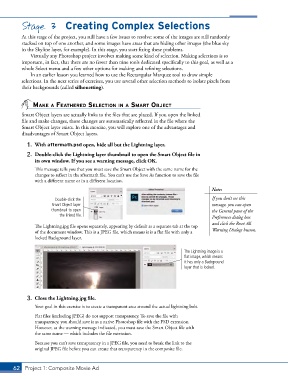
               This message tells you that you must save the Smart Object with the same name for the
               changes to reflect in the aftermath file. You can’t use the Save As function to save the file
               with a different name or in a different location.
                                                                                        Note:

                        Double-click the                                                If you don’t see this
                      Smart Object layer                                                message, you can open
                      thumbnail to open                                                 the General pane of the
                          the linked file.                                              Preferences dialog box
                                                                                        and click the Reset All
               The Lightning.jpg file opens separately, appearing by default as a separate tab at the top
               of the document window. This is a JPEG file, which means it is a flat file with only a   Warning Dialogs button.
               locked Background layer.


                                                                             The Lightning image is a
                                                                             flat image, which means
                                                                             it has only a Background
                                                                             layer that is locked.


            3.  Close the Lightning.jpg file.
               Your goal in this exercise is to create a transparent area around the actual lightning bolt.

               Flat files (including JPEG) do not support transparency. To save the file with
               transparency, you should save it as a native Photoshop file with the PSD extension.
               However, as the warning message indicated, you must save the Smart Object file with
               the same name — which includes the file extension.

               Because you can’t save transparency in a JPEG file, you need to break the link to the
               original JPEG file before you can create that transparency in the composite file.


       62 Project 1: Composite Movie Ad

