


Page 50 - CC2018_WD_Look_Inside
P. 50
5.  Choose Edit>Undo Flip Canvas Vertical.
               The Undo command affects the last action you performed; the
               actual command changes to reflect the action that will be undone.
               Showing or hiding a layer is not considered an “action,” so the Undo command simply
               un-flips the canvas. The Logos group is again hidden, as it was when you flipped the
               canvas in Step 3.

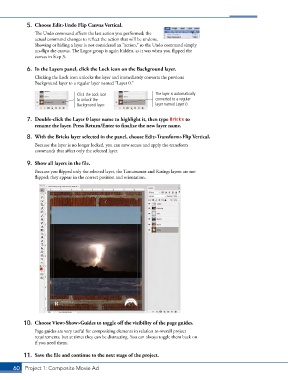
            6.  In the Layers panel, click the Lock icon on the Background layer.
               Clicking the Lock icon unlocks the layer and immediately converts the previous
               Background layer to a regular layer named “Layer 0.”

                                 Click the Lock icon             The layer is automatically
                                 to unlock the                   converted to a regular
                                 Background layer.               layer named Layer 0.


            7.  Double-click the Layer 0 layer name to highlight it, then type Bricks to
               rename the layer. Press Return/Enter to finalize the new layer name.
            8.  With the Bricks layer selected in the panel, choose Edit>Transform>Flip Vertical.

               Because the layer is no longer locked, you can now access and apply the transform
               commands that affect only the selected layer.

            9.  Show all layers in the file.
               Because you flipped only the selected layer, the Tantamount and Ratings layers are not
               flipped; they appear in the correct position and orientation.


           10.  Choose View>Show>Guides to toggle off the visibility of the page guides.
               Page guides are very useful for compositing elements in relation to overall project
               requirements, but at times they can be distracting. You can always toggle them back on
               if you need them.

           11.  Save the file and continue to the next stage of the project.

       60 Project 1: Composite Movie Ad

