


Page 80 - Web Combo 2022
P. 80
Save a JPEG File for Digital Media
         Your client has also requested a low-resolution JPEG file, using the RGB color
         model. Several extra steps are required to create this file with the required settings.

           1.  With aftermath.psd open in Photoshop, choose File>Save a Copy.
               To protect your work, you are saving this file with a different file name before making
               significant destructive changes.

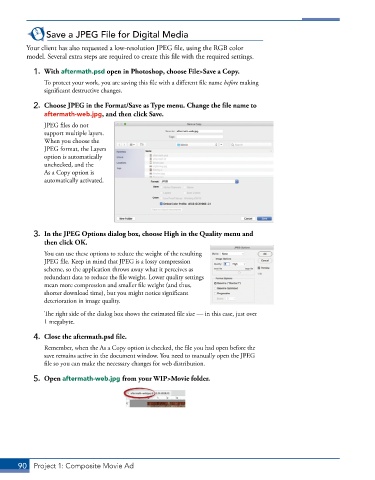
           2.  Choose JPEG in the Format/Save as Type menu. Change the file name to
               aftermath-web.jpg, and then click Save.
               JPEG files do not
               support multiple layers.
               When you choose the
               JPEG format, the Layers
               option is automatically
               unchecked, and the
               As a Copy option is
               automatically activated.


           3.  In the JPEG Options dialog box, choose High in the Quality menu and
              then click OK.

               You can use these options to reduce the weight of the resulting
               JPEG file. Keep in mind that JPEG is a lossy compression
               scheme, so the application throws away what it perceives as
               redundant data to reduce the file weight. Lower quality settings
               mean more compression and smaller file weight (and thus,
               shorter download time), but you might notice significant
               deterioration in image quality.

               The right side of the dialog box shows the estimated file size — in this case, just over
               1 megabyte.

           4.  Close the aftermath.psd file.

               Remember, when the As a Copy option is checked, the file you had open before the
               save remains active in the document window. You need to manually open the JPEG
               file so you can make the necessary changes for web distribution.

           5.  Open aftermath-web.jpg from your WIP>Movie folder.


       90  Project 1: Composite Movie Ad

