


Page 78 - Web Combo 2022
P. 78
STAGE 4 / Saving Files for Multiple Media
At the beginning of the project, you saved this file in Photoshop’s native format (PSD). However,
many Photoshop projects require saving the completed file in at least one other format. Many artists
prefer to leave all files in the PSD format because then, there is only one file to track. Others prefer
to send only flattened TIFF files of their artwork because the individual elements can’t be changed.
Ultimately, the format (or formats, if the file is being used in multiple places) you use will
depend on where and how the file is being placed. For this project, you have been asked to create a
flattened, high-resolution TIFF file and a low-resolution JPEG file for use on a website.
Save a Flat TIFF File
The printed magazine suggests that ads created in Photoshop be submitted as flat
TIFF files. Since you designed the ad to incorporate bleeds for pages up to 8.5 1 11,
all you have to do for this version is save the file in the appropriate format.
1. With aftermath.psd open, choose File>Save a Copy.
The poster artwork is complete in the native Photoshop file. In the next few exercises
you are going to make changes that you don’t want to become a permanent part of
the file. Saving it now, if you haven’t already, means the finished artwork file won’t be
compromised in the following exercises.
2. Click the Save on Your Computer button if necessary.
From this point on throughout this book, you should assume you are saving the files
to a local drive. We will not continue to repeat the instruction to click the Save on
Your Computer button.
3. If necessary, navigate to your WIP>Movie folder as the target location.
The Save a Copy dialog box defaults to the last-used location. If you continued the
entire way through this project without stopping, you won’t have to navigate.
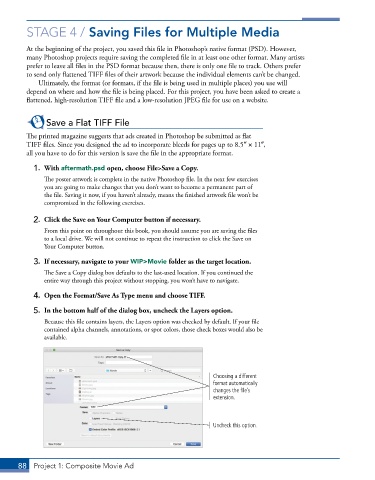
4. Open the Format/Save As Type menu and choose TIFF.
5. In the bottom half of the dialog box, uncheck the Layers option.
Because this file contains layers, the Layers option was checked by default. If your file
contained alpha channels, annotations, or spot colors, those check boxes would also be
available.
Choosing a different
format automatically
changes the file’s
extension.
Uncheck this option.
88 Project 1: Composite Movie Ad

