


Page 4 - Web Combo 2022
P. 4
WALK-THROUGH
Project Goals
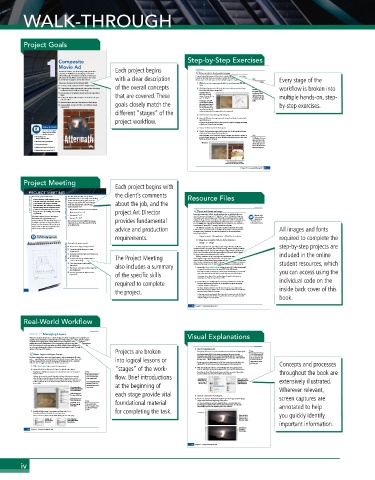
1 Composite Each project begins Step-by-Step Exercises
Movie Ad
Tantamount Studios, one of the largest film production
Drag a File to Composite Images
companies in Hollywood, is developing a new movie
called “Aftermath.” You have been hired to develop an
advertisement that will be used to announce the movie with a clear description Compositing multiple images in Photoshop is a fairly simple process — or at least,
it starts out that way. There are, of course, a number of technical and aesthetic issues
in several trade magazines and on the internet. that you must resolve when you combine multiple images in a single design. Note: Every stage of the
This project incorporates the following skills: 1. With aftermath.psd open, open the file Storm.jpg from your WIP>Movie When you created the
background file for
o Creating a single composite ad from multiple images of the overall concepts folder. this project, you cre-
o Compositing multiple photographs, using various techniques 2. With Storm.jpg the active file in the document window, open the Image ated a raster image that workflow is broken into
to silhouette the focal object in each image Size dialog box (Image>Image Size). contains pixels. Digital
o Incorporating vector graphics as rasterized and Smart Object Remember that you photographs and scans
are also pixel-based,
layers that are covered. These can press Command- which is why you use
o Scaling and aligning different objects in relation to the page Option-I/Control-Alt-I to Photoshop to edit and multiple hands-on, step-
open the dialog box.
manipulate those types
and each other This image is only 180 of files.
o Managing layout elements using layers and layer groups goals closely match the ppi, but it has a physical
size much larger than the
o Saving multiple versions of a file to meet different output defined ad size. As with by-step exercises.
requirements the original bricks image,
the principle of effective
different “stages” of the 3. Click Cancel to close the Image Size dialog box.
resolution might make this image usable in the composite ad.
project workflow. 4. Open the Window>Arrange menu and choose 2-up Vertical to show both
open files at once.
As you saw in the Interface chapter, these options are useful for arranging and viewing
multiple open files within your workspace.
Videos to Watch 5. Choose the Move tool in the Tools panel.
Access these helpful 6. Click in the Storm.jpg image window, drag into the aftermath.psd image
videos in your online window, and then release the mouse button.
student resources:
New Music Art Basic compositing can be as simple as dragging a selection from one file to another. If Note:
no active selection appears in the source document, this action moves the entire active
Project Introduction layer from the source document. On Windows, the cursor
nderstanding Resolution Move tool shows a plus sign to in-
U
dicate that you are add-
Cropping Images ing the image as a new
layer in the document to
Using Selection Tools (Part 1) which you dragged it.
Using Selection Tools (Part 2)
Click and drag from the Storm.jpg
window into the aftermath.psd window.
Project 1: Composite Movie Ad 41
Project Meeting
Each project begins with
PROJECT MEETING The client loved the initial concept sketch I the client’s comments Resource Files
Here’s a basic synopsis of the movie:
client comments A massive hurricane, unlike anything ever seen art director comments the files. I’ve had the photographer prepare the about the job, and the
submitted last week, so we’re ready to start building
on the West Coast of the United States, takes aim
images we need, and the client has provided the
at San Francisco. The Category 6 hurricane
studio and rating logo files. They also sent me the
sparks tidal waves, fires, and floods. The resulting
primary magazine specs:
destruction dwarfs even the earthquake and fire
– Files should be submitted as flattened TIFF files
of 1906. The movie follows the storm survivors
Open and Resize an Image
through the process of rebuilding, both personally
and politically.
– Trim size: 8.53 1 113
created. If you scan an image to be 3″ high by 3″ wide at 150 ppi, that image has
This movie is going to be one of our summer – Bleed size: 8.753 1 11.253 project Art Director Every raster image has a defined, specific resolution that is established when it is Watch the video
Understanding
blockbusters, and we’re throwing a lot of – Live area: 83 1 10.53 450 pixels in each vertical column, and 450 pixels in each horizontal row. Simply Resolution in
resources behind it. We’ll be putting the same ad After you have created the final file for printing, provides fundamental resizing the image stretches or compresses those pixels into a different physical space, Photoshop in your
in multiple magazines, and they all use different I also need you to create a flattened JPEG file for but does not add or remove pixel information. If you resize the 3″ × 3″ image to online student resources.
software to create the layouts. We need the ad to use in digital media. 6″ × 6″ (200% of the original), the 450 pixels in each column or row are forced to
extend across 6″ instead of 3″, causing a marked loss of quality.
work for all of our placements, regardless of the
The effective resolution of an image is the resolution calculated after scaling
software being used by the publishers. advice and production is taken into account. This number is equally as (and perhaps, more) important as All images and fonts
the original image resolution. The effective resolution can be calculated with a
fairly simple equation:
Watch the video Composite Movie Ad Project Original resolution ÷ (% magnification ÷ 100) = Effective resolution
Introduction in your online student resources. To complete this project, you will: requirements. If a 300-ppi image is magnified 150%, the effective resolution is: required to complete the
300 ppi ÷ 1.5 = 200 ppi
project objectives o Resize a raster image to change resolution The Project Meeting resolution becomes. In general, you can make an image 10% or 15% larger without step-by-step projects are
In other words, the more you enlarge a raster image, the lower its effective
o Composite multiple images into a single
significant adverse effects. The more you enlarge an image, however, the worse the
background file
included in the online
results. Even Photoshop, which offers very sophisticated formulas (called algorithms)
o Incorporate both raster and vector elements into
for sizing images, cannot guarantee perfect results.
the same design
Effective resolution can be a very important consideration when working with
o Transform and arrange individual layers to
cameras. Many of those devices capture images with a specific number of pixels, rather
create a cohesive design
than a number of pixels per inch (ppi). In this exercise, you will explore the effective
o Create layer groups to easily manage related client-supplied images, especially those that come from consumer-level digital student resources, which
resolution of an image to see if it can be used for a full-page, printed magazine ad.
layer content also includes a summary
o Use selection techniques to isolate images from 1. Expand the Movie_Web22_RF.zip archive in your WIP folder (Macintosh),
their backgrounds or copy the archive contents into your WIP folder (Windows).
o Save two types of files for different media This results in a folder named Movie, which contains all of the files you need for this you can access using the
project. You should also use this folder to save the files you create in this project.
requirements of the specific skills If necessary, refer to Page 1 of the Interface chapter for specific information on
expanding or accessing the required resource files. individual code on the
required to complete 2. In Photoshop, choose File>Open. If necessary, click the Your Computer
button in the bottom-left corner of the dialog box to show the system-
standard navigation dialog box.
The Open dialog box defaults to show the last-used option, so you might see the inside back cover of this
the project. into your Creative Cloud (CC) account.
Project 1: Composite Movie Ad Cloud Documents pane, which is used to access any files that have been saved directly
In this project you are working with files on your local computer (or other local drive),
so you might need to click the Your Computer button to access the system-standard
navigation dialog box for opening files. book.
28 Project 1: Composite Movie Ad
Real-World Workflow
STAGE 2 / Managing Layers
When you composite images into a cohesive design, you almost certainly need to manipulate and Visual Explanations
transform some of the layers to make all of the pieces work together. Photoshop includes a number
of options for managing layers: naming layers for easier recognition, creating layer groups so
multiple layers can be manipulated at once, moving layers around on the canvas, transforming layers
both destructively and nondestructively, controlling individual layer visibility, and arranging the
top-to-bottom stacking order of layers to determine exactly what is visible. You will use all of these
options in this stage of the project. 3. Close the Lightning.jpg file.
Projects are broken Your goal in this exercise is to create a transparent area around the actual lightning bolt. Note:
Name Layers and Layer Groups Flat files (including JPEG) do not support transparency. To save the file with If the original placed file
It’s always a good idea to name your layers because it makes managing the file much transparency, you should save it as a native Photoshop file with the PSD extension. was a native Photoshop
However, as the warning message indicated, you must save the Smart Object file with
file, you would not need
easier — especially when you work with files that include dozens of layers. Even with into logical lessons or the same name — which includes the file extension. to rasterize the Smart
only four unnamed layers in this file (counting the Background layer), it would be Object layer to accom-
tedious to have to toggle each layer on to find the one you want. Because you can’t save transparency in a JPEG file, you need to break the link to the plish your goal. Concepts and processes
original JPEG file before you can create that transparency in the composite file.
1. With aftermath.psd open, review the Layers panel. “stages” of the work- 4. With aftermath.psd still open, Control/right-click the Lightning layer
2. Option/Alt-click the Eye icon for Layer 1 to hide all other layers. name in the Layers panel. Choose Rasterize Layer in the contextual menu.
Toggling layer visibility is an easy way to see only what you want to see at any given Note: Rasterizing the Smart Object basically removes the link to any external file, making throughout the book are
stage in a project. Press Shift and click to the Smart Object a part of the file in which it has been placed.
Clicking the Eye icon for a specific layer hides that layer. Clicking the empty space select consecutive layers flow. Brief introductions
where the Eye icon should be shows the hidden layer. To show or hide a series of in the Layers panel. Contol/right-click After rasterizing, the
consecutive layers, click the visibility icon (or empty space) for the first layer you want the layer name to thumbnail shows that extensively illustrated.
to affect, hold down the mouse button, and drag down to the last layer you want to Press Command/Control open the layer’s Lightning is now a
show or hide. and click to select non- contextual menu. regular image layer.
consecutive layers in the at the beginning of
The checked pattern Layers panel.
shows transparent areas Wherever relevant,
of the visible layer(s).
Click an empty space each stage provide vital
to show a hidden layer. 5. Select the Lasso tool in the Tools panel.
Click the Eye icons to 6. Zoom in so you can clearly see the lightning in the image, and then drag a screen captures are
hide individual layers. Note: rough shape around the lightning in the photo.
Option/Alt-click an foundational material The Lasso tools allow you to make irregular selections — selections that aren’t
Eye icon to hide all You can also choose just rectangular or elliptical. When you release the mouse button, the end point
other layers. New Group from Layers automatically connects to the beginning point of the selection. annotated to help
in the panel Options
menu.
3. Double-click the Layer 1 layer name, and then type Storm. for completing the task.
Press Return/Enter to finalize the new layer name. Lasso tool you quickly identify
You can rename any layer by simply double-clicking the name and typing. Open ends of the
selection connect
Double-click Press Return/Enter when you release
important information.
the layer name after typing to finalize the mouse button.
to access it. the new name.
Marching ants
54 Project 1: Composite Movie Ad identify the
selected area.
66 Project 1: Composite Movie Ad
iv

