


Page 18 - CC2018_GD_Look_Inside
P. 18
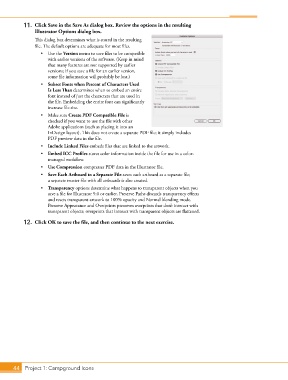
11.  Click Save in the Save As dialog box. Review the options in the resulting
               Illustrator Options dialog box.

               This dialog box determines what is stored in the resulting
               file. The default options are adequate for most files.
                  •  Use the Version menu to save files to be compatible
                     with earlier versions of the software. (Keep in mind
                     that many features are not supported by earlier
                     versions; if you save a file for an earlier version,
                     some file information will probably be lost.)
                  •  Subset Fonts when Percent of Characters Used
                     Is Less Than determines when to embed an entire
                     font instead of just the characters that are used in
                     the file. Embedding the entire font can significantly
                     increase file size.
                  •  Make sure Create PDF Compatible File is
                     checked if you want to use the file with other
                     Adobe applications (such as placing it into an
                     InDesign layout). This does not create a separate PDF file; it simply includes
                     PDF preview data in the file.
                  •  Include Linked Files embeds files that are linked to the artwork.
                  •  Embed ICC Profiles stores color information inside the file for use in a color-
                     managed workflow.
                  •  Use Compression compresses PDF data in the Illustrator file.
                  •  Save Each Artboard to a Separate File saves each artboard as a separate file;
                     a separate master file with all artboards is also created.
                  •  Transparency options determine what happens to transparent objects when you
                     save a file for Illustrator 9.0 or earlier. Preserve Paths discards transparency effects
                     and resets transparent artwork to 100% opacity and Normal blending mode.
                     Preserve Appearance and Overprints preserves overprints that don’t interact with
                     transparent objects; overprints that interact with transparent objects are flattened.
           12.  Click OK to save the file, and then continue to the next exercise.


       44 Project 1: Campground Icons

