


Page 23 - CC2018_GD_Look_Inside
P. 23
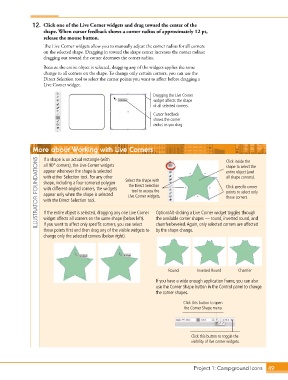
12.  Click one of the Live Corner widgets and drag toward the center of the
                   shape. When cursor feedback shows a corner radius of approximately 12 pt,
                   release the mouse button.
                   The Live Corner widgets allow you to manually adjust the corner radius for all corners
                   on the selected shape. Dragging in toward the shape center increases the corner radius;
                   dragging out toward the corner decreases the corner radius.

                   Because the entire object is selected, dragging any of the widgets applies the same
                   change to all corners on the shape. To change only certain corners, you can use the
                   Direct Selection tool to select the corner points you want to affect before dragging a
                   Live Corner widget.

                                                                Dragging the Live Corner
                                                                widget affects the shape
                                                                of all selected corners.

                                                                Cursor feedback
                                                                shows the corner
                                                                radius as you drag.


               More about Working with Live Corners                                           Click inside the

                   If a shape is an actual rectangle (with
                ILLUSTRATOR FOUNDATIONS  with either Selection tool. For any other   Select the shape with   entire object (and
                   all 90° corners), the Live Corner widgets
                                                                                              shape to select the
                   appear whenever the shape is selected
                                                                                              all shape corners).
                   shape, including a four-cornered polygon
                                                      the Direct Selection
                                                                                              Click specific corner
                   with different-angled corners, the widgets
                                                       tool to access the
                                                                                              points to select only
                   appear only when the shape is selected
                                                      Live Corner widgets.
                                                                                              those corners.
                   with the Direct Selection tool.
                   If the entire object is selected, dragging any one Live Corner
                   widget affects all corners on the same shape (below left).
                                                                 the available corner shapes — round, inverted round, and
                   If you want to affect only specific corners, you can select
                                                                 chamfer/beveled. Again, only selected corners are affected
                   those points first and then drag any of the visible widgets to   Option/Alt-clicking a Live Corner widget toggles through
                                                                 by the shape change.
                   change only the selected corners (below right).


                                                                       Round      Inverted Round   Chamfer

                                                                 If you have a wide enough application frame, you can also
                                                                 use the Corner Shape button in the Control panel to change
                                                                 the corner shapes.
                                                                             Click this button to open
                                                                             the Corner Shape menu.


                                                                                Click this button to toggle the
                                                                                visibility of live corner widgets.


                                                                                 Project 1: Campground Icons    49

