


Page 21 - CS6_PS_Look_Inside
P. 21
Understanding File Saving Preferences

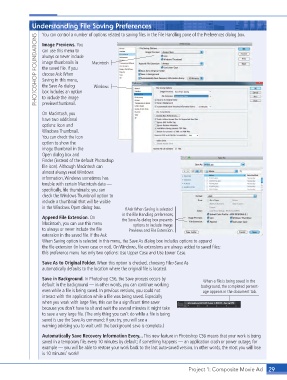
                        You can control a number of options related to saving files in the File Handling pane of the Preferences dialog box.
                     PHOTOSHOP FOUNDATIONS  can use this menu to   Macintosh
                        Image Previews. You

                        always or never include
                        image thumbnails in
                        the saved file. If you
                        choose Ask When
                        Saving in this menu,
                        the Save As dialog
                                             Windows
                        box includes an option
                        to include the image
                        preview/thumbnail.

                        On Macintosh, you
                        have two additional
                        options: Icon and
                        Windows Thumbnail.
                        You can check the Icon
                        option to show the
                        image thumbnail in the
                        Open dialog box and
                        Finder (instead of the default Photoshop
                        file icon). Although Macintosh can
                        almost always read Windows
                        information, Windows sometimes has
                        trouble with certain Macintosh data —
                        specifically, file thumbnails; you can
                        check the Windows Thumbnail option to
                        include a thumbnail that will be visible
                        in the Windows Open dialog box.  If Ask When Saving is selected
                                                         in the File Handling preferences,
                        Append File Extension. On       the Save As dialog box presents
                        Macintosh, you can use this menu     options to include Image
                        to always or never include the file   Previews and File Extension.
                        extension in the saved file. If the Ask
                        When Saving option is selected in this menu, the Save As dialog box includes options to append
                        the file extension (in lower case or not). On Windows, file extensions are always added to saved files;
                        this preference menu has only two options: Use Upper Case and Use Lower Case.

                        Save As to Original Folder. When this option is checked, choosing File>Save As
                        automatically defaults to the location where the original file is located.

                        Save in Background. In Photoshop CS6, the Save process occurs by    When a file is being saved in the
                        default in the background — in other words, you can continue working   background, the completed percent-
                        even while a file is being saved. In previous versions, you could not   age appears in the document tab.
                        interact with the application while a file was being saved. Especially
                        when you work with large files, this can be a significant time saver
                        because you don’t have to sit and wait the several minutes it might take
                        to save a very large file. (The only thing you can’t do while a file is being
                        saved is use the Save As command; if you try, you will see a
                        warning advising you to wait until the background save is complete.)
                        Automatically Save Recovery Information Every... This new feature in Photoshop CS6 means that your work is being
                        saved in a temporary file, every 10 minutes by default; if something happens — an application crash or power outage, for
                        example — you will be able to restore your work back to the last auto-saved version. In other words, the most you will lose
                        is 10 minutes’ work!


                                                                                    Project 1: Composite Movie Ad   29

