


Page 76 - CC2017_PS_Look_Inside
P. 76
sAVe A lAyered tiFF File
          Some software that can’t use native PSD files can use layered TIFF files, which allow
          you to maintain as much of the native information as possible in the resulting file.

            1.  With aftermath.psd open, choose File>Save As.

            2.  If necessary, navigate to your WIP>Movie folder as the target location.
               The Save As dialog box defaults to the last-used location. If you continued the entire way
               through this project without stopping, you won’t have to navigate.

            3.  In the Save As/File Name field, type -layered at the end of the current file
               name (before the .psd extension).

            4.  Click the Format/Save As Type menu and choose TIFF.
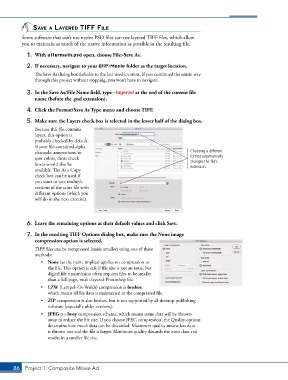
            5.  Make sure the Layers check box is selected in the lower half of the dialog box.
               Because this file contains
               layers, this option is
               probably checked by default.
               If your file contained alpha
               channels, annotations, or                                        Choosing a different
               spot colors, those check                                         format automatically
               boxes would also be                                              changes the file’s
                                                                                extension.
               available. The As a Copy
               check box can be used if
               you want to save multiple
               versions of the same file with
               different options (which you
               will do in the next exercise).


            6.  Leave the remaining options at their default values and click Save.

            7.  In the resulting TIFF Options dialog box, make sure the None image
               compression option is selected.
               TIFF files can be compressed (made smaller) using one of three
               methods:
                  •  None (as the name implies) applies no compression to
                     the file. This option is safe if file size is not an issue, but
                     digital file transmission often requires files to be smaller
                     than a full-page, multi-layered Photoshop file.
                  •  LZW (Lempel-Ziv-Welch) compression is lossless,
                     which means all file data is maintained in the compressed file.
                  •  ZIP compression is also lossless, but is not supported by all desktop-publishing
                     software (especially older versions).
                  •  JPEG is a lossy compression scheme, which means some data will be thrown
                     away to reduce the file size. If you choose JPEG compression, the Quality options
                     determine how much data can be discarded. Maximum quality means less data
                     is thrown out and the file is larger. Minimum quality discards the most data and
                     results in a smaller file size.


       86 Project 1: Composite Movie Ad

