


Page 28 - Adobe Indesign CC 2020
P. 28
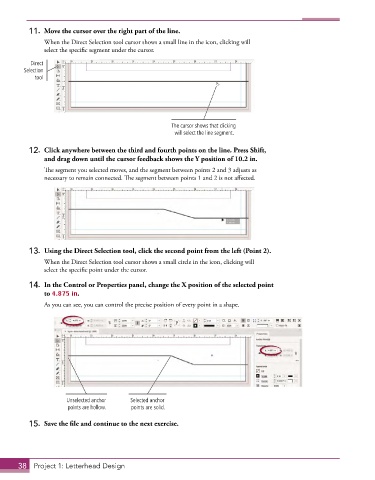
11.  Move the cursor over the right part of the line.
               When the Direct Selection tool cursor shows a small line in the icon, clicking will
               select the specific segment under the cursor.
          Direct
        Selection
            tool


                                                     The cursor shows that clicking
                                                      will select the line segment.

          12.  Click anywhere between the third and fourth points on the line. Press Shift,
              and drag down until the cursor feedback shows the Y position of 10.2 in.

               The segment you selected moves, and the segment between points 2 and 3 adjusts as
               necessary to remain connected. The segment between points 1 and 2 is not affected.


          13.  Using the Direct Selection tool, click the second point from the left (Point 2).
               When the Direct Selection tool cursor shows a small circle in the icon, clicking will
               select the specific point under the cursor.
          14.  In the Control or Properties panel, change the X position of the selected point
              to 4.875 in.
               As you can see, you can control the precise position of every point in a shape.


                     Unselected anchor   Selected anchor
                      points are hollow.  points are solid.

          15.  Save the file and continue to the next exercise.


       38  Project 1: Letterhead Design

