


Page 69 - CC2017_AI_Look_Inside
P. 69
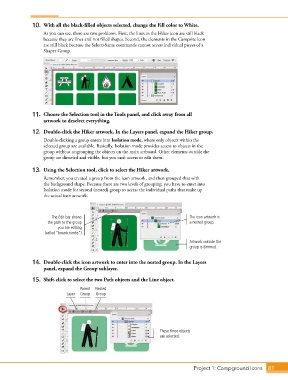
10.  With all the black-filled objects selected, change the Fill color to White.
                   As you can see, there are two problems. First, the lines in the Hiker icon are still black
                   because they are lines and not filled shapes. Second, the elements in the Campsite icon
                   are still black because the Select>Same commands cannot access individual pieces of a
                   Shaper Group.


               11.  Choose the Selection tool in the Tools panel, and click away from all
                   artwork to deselect everything.

               12.  Double-click the Hiker artwork. In the Layers panel, expand the Hiker group.
                   Double-clicking a group enters into Isolation mode, where only objects within the
                   selected group are available. Basically, Isolation mode provides access to objects in the
                   group without ungrouping the objects on the main artboard. Other elements outside the
                   group are dimmed and visible, but you can’t access or edit them.

               13.  Using the Selection tool, click to select the Hiker artwork.
                   Remember, you created a group from the icon artwork, and then grouped that with
                   the background shape. Because there are two levels of grouping, you have to enter into
                   Isolation mode for second (nested) group to access the individual paths that make up
                   the actual icon artwork.


                      The Edit bar shows                                       The icon artwork is
                     the path to the group                                     a nested group.
                         you are editing
                   (called “breadcrumbs”).

                                                                               Artwork outside the
                                                                               group is dimmed.


               14.  Double-click the icon artwork to enter into the nested group. In the Layers
                   panel, expand the Group sublayer.

               15.  Shift-click to select the two Path objects and the Line object.

                                  Parent  Nested
                             Layer  Group  Group


                                                                   These three objects
                                                                   are selected.


                                                                                 Project 1: Campground Icons    81

