


Page 37 - CC 2019 WD Look Inside
P. 37
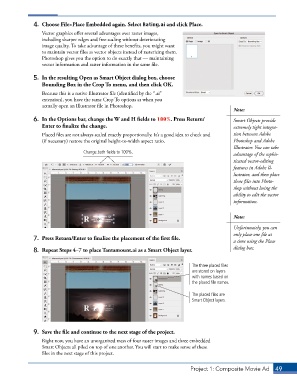
4.  Choose File>Place Embedded again. Select Rating.ai and click Place.
                 Vector graphics offer several advantages over raster images,
                 including sharper edges and free scaling without deteriorating
                 image quality. To take advantage of these benefits, you might want
                 to maintain vector files as vector objects instead of rasterizing them.
                 Photoshop gives you the option to do exactly that — maintaining
                 vector information and raster information in the same file.

              5.  In the resulting Open as Smart Object dialog box, choose
                 Bounding Box in the Crop To menu, and then click OK.
                 Because this is a native Illustrator file (identified by the “.ai”
                 extension), you have the same Crop To options as when you
                 actually open an Illustrator file in Photoshop.
                                                                                           Note:
              6.  In the Options bar, change the W and H fields to 100%. Press Return/     Smart Objects provide
                 Enter to finalize the change.                                             extremely tight integra-
                 Placed files are not always scaled exactly proportionally. It’s a good idea to check and   tion between Adobe
                 (if necessary) restore the original height-to-width aspect ratio.         Photoshop and Adobe
                                                                                           Illustrator. You can take
                                 Change both fields to 100%.
                                                                                           advantage of the sophis-
                                                                                           ticated vector-editing
                                                                                           features in Adobe Il-
                                                                                           lustrator, and then place
                                                                                           those files into Photo-
                                                                                           shop without losing the
                                                                                           ability to edit the vector
                                                                                           information.


                                                                                           Note:
                                                                                           Unfortunately, you can
                                                                                           only place one file at
              7.  Press Return/Enter to finalize the placement of the first file.          a time using the Place
              8.  Repeat Steps 4–7 to place Tantamount.ai as a Smart Object layer.         dialog box.


                                                                           The three placed files
                                                                           are stored on layers
                                                                           with names based on
                                                                           the placed file names.

                                                                           The placed files are
                                                                           Smart Object layers.


              9.  Save the file and continue to the next stage of the project.
                 Right now, you have an unorganized mess of four raster images and three embedded
                 Smart Objects all piled on top of one another. You will start to make sense of these
                 files in the next stage of this project.


                                                                          Project 1: Composite Movie Ad    49

