


Page 11 - CC2017_WD_Look_Inside
P. 11
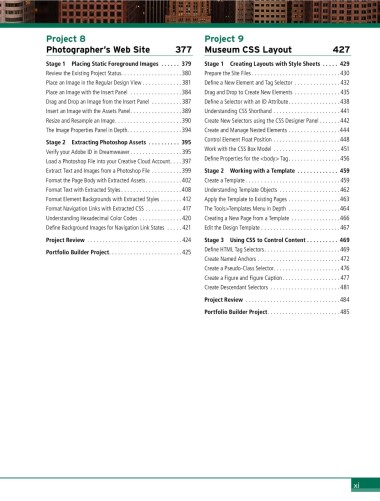
Project 8                                         Project 9
               Photographer’s Web Site                  377      Museum CSS Layout                       427

               Stage 1  Placing Static Foreground Images   . . . . . . 379  Stage 1  Creating Layouts with Style Sheets   . . . . . 429
               Review the Existing Project Status....................380  Prepare the Site Files .............................430
               Place an Image in the Regular Design View ............. 381  Define a New Element and Tag Selector ............... 432
               Place an Image with the Insert Panel  .................384  Drag and Drop to Create New Elements ............... 435
               Drag and Drop an Image from the Insert Panel ..........387  Define a Selector with an ID Attribute.................438
               Insert an Image with the Assets Panel.................389  Understanding CSS Shorthand ......................441
               Resize and Resample an Image......................390  Create New Selectors using the CSS Designer Panel .......442
               The Image Properties Panel in Depth..................394  Create and Manage Nested Elements .................444
                                                                 Control Element Float Position ......................448
               Stage 2  Extracting Photoshop Assets   . . . . . . . . . . 395
               Verify your Adobe ID in Dreamweaver.................395  Work with the CSS Box Model ...................... 451
               Load a Photoshop File into your Creative Cloud Account....397  Define Properties for the <body> Tag.................456
               Extract Text and Images from a Photoshop File ..........399  Stage 2  Working with a Template   . . . . . . . . . . . . . 459
               Format the Page Body with Extracted Assets............402  Create a Template ............................... 459
               Format Text with Extracted Styles....................408  Understanding Template Objects ....................462
               Format Element Backgrounds with Extracted Styles ....... 412  Apply the Template to Existing Pages .................463
               Format Navigation Links with Extracted CSS ............ 417  The Tools>Templates Menu in Depth .................464
               Understanding Hexadecimal Color Codes  .............. 420  Creating a New Page from a Template ................466
               Define Background Images for Navigation Link States  ..... 421  Edit the Design Template . . . . . . . . . . . . . . . . . . . . . . . . . .467
               Project Review ............................... 424  Stage 3  Using CSS to Control Content  .  .  .  .  .  .  .  .  .  .  469
               Portfolio Builder Project........................ 425  Define HTML Tag Selectors.........................469
                                                                 Create Named Anchors ........................... 472
                                                                 Create a Pseudo-Class Selector...................... 476
                                                                 Create a Figure and Figure Caption................... 477
                                                                 Create Descendant Selectors .......................481

                                                                 Project Review ...............................484
                                                                 Portfolio Builder Project........................485


                                                                                                                xi

