


Page 71 - Web Combo 2022
P. 71
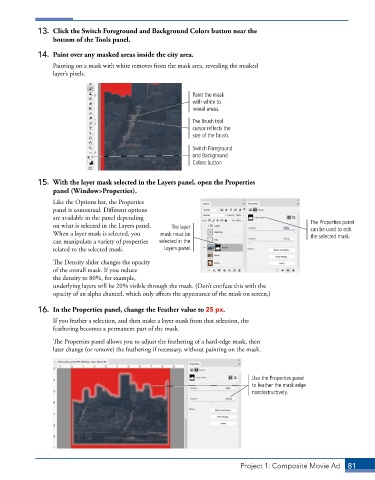
13.  Click the Switch Foreground and Background Colors button near the
                 bottom of the Tools panel.

             14.  Paint over any masked areas inside the city area.
                 Painting on a mask with white removes from the mask area, revealing the masked
                 layer’s pixels.


                                                            Paint the mask
                                                            with white to
                                                            reveal areas.
                                                            The Brush tool
                                                            cursor reflects the
                                                            size of the brush.

                                                            Switch Foreground
                                                            and Background
                                                            Colors button


             15.  With the layer mask selected in the Layers panel, open the Properties
                 panel (Window>Properties).
                 Like the Options bar, the Properties
                 panel is contextual. Different options
                 are available in the panel depending
                 on what is selected in the Layers panel.   The layer                           The Properties panel
                                                                                                can be used to edit
                 When a layer mask is selected, you   mask must be                              the selected mask.
                 can manipulate a variety of properties   selected in the
                 related to the selected mask.     Layers panel.
                 The Density slider changes the opacity
                 of the overall mask. If you reduce
                 the density to 80%, for example,
                 underlying layers will be 20% visible through the mask. (Don’t confuse this with the
                 opacity of an alpha channel, which only affects the appearance of the mask on screen.)

             16.  In the Properties panel, change the Feather value to 25 px.
                 If you feather a selection, and then make a layer mask from that selection, the
                 feathering becomes a permanent part of the mask.
                 The Properties panel allows you to adjust the feathering of a hard-edge mask, then
                 later change (or remove) the feathering if necessary, without painting on the mask.


                                                                              Use the Properties panel
                                                                              to feather the mask edge
                                                                              nondestructively.


                                                                          Project 1: Composite Movie Ad    81

