


Page 13 - Web Combo 2022
P. 13
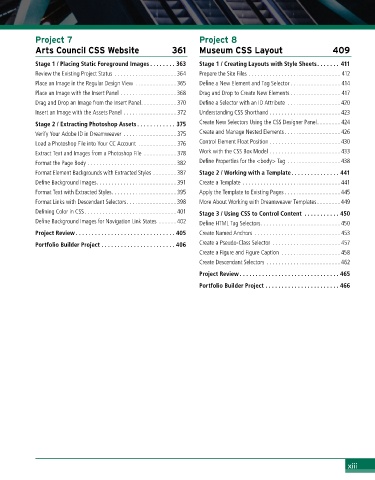
Project	7	                                        Project	8
            Arts	Council	CSS	Website	                361      Museum	CSS	Layout	                       409
            Stage 1 / Placing Static Foreground Images  . . . . . . . . 363  Stage 1 / Creating Layouts with Style Sheets . . . . . . . 411
            Review the Existing Project Status ..................... 364  Prepare the Site Files ............................... 412
            Place an Image in the Regular Design View .............. 365  Define a New Element and Tag Selector ................. 414
            Place an Image with the Insert Panel ................... 368  Drag and Drop to Create New Elements ................. 417
            Drag and Drop an Image from the Insert Panel............ 370  Define a Selector with an ID Attribute .................. 420
            Insert an Image with the Assets Panel .................. 372  Understanding CSS Shorthand ........................ 423
            Stage 2 / Extracting Photoshop Assets  . . . . . . . . . . . . 375  Create New Selectors Using the CSS Designer Panel........ 424
            Verify Your Adobe ID in Dreamweaver .................. 375  Create and Manage Nested Elements................... 426
            Load a Photoshop File into Your CC Account ............. 376  Control Element Float Position ........................ 430
            Extract Text and Images from a Photoshop File ........... 378  Work with the CSS Box Model ........................ 433
            Format the Page Body .............................. 382  Define Properties for the <body> Tag .................. 438
            Format Element Backgrounds with Extracted Styles ........ 387  Stage 2 / Working with a Template . . . . . . . . . . . . . . . 441
            Define Background Images........................... 391  Create a Template ................................. 441
            Format Text with Extracted Styles...................... 395  Apply the Template to Existing Pages................... 445
            Format Links with Descendant Selectors................. 398  More About Working with Dreamweaver Templates ........ 449
            Defining Color in CSS............................... 401  Stage 3 / Using CSS to Control Content   . . . . . . . . . . . 450
            Define Background Images for Navigation Link States ...... 402  Define HTML Tag Selectors........................... 450
            Project Review  . . . . . . . . . . . . . . . . . . . . . . . . . . . . . . . 405  Create Named Anchors ............................. 453
            Portfolio Builder Project  . . . . . . . . . . . . . . . . . . . . . .  . 406  Create a Pseudo-Class Selector ....................... 457
                                                              Create a Figure and Figure Caption .................... 458
                                                              Create Descendant Selectors ......................... 462
                                                              Project Review  . . . . . . . . . . . . . . . . . . . . . . . . . . . . . . . 465

                                                              Portfolio Builder Project  . . . . . . . . . . . . . . . . . . . . . . . 466


                                                                                                           xiii

