


Page 12 - Web Combo 2022
P. 12
CONTENTS


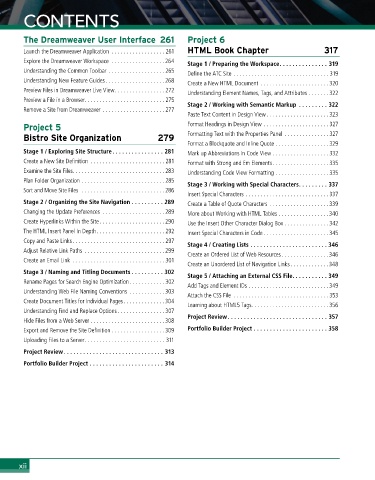
        The	Dreamweaver	User	Interface	 261               Project	6
        Launch the Dreamweaver Application .................. 261  HTML	Book	Chapter	               317
        Explore the Dreamweaver Workspace .................. 264  Stage 1 / Preparing the Workspace . . . . . . . . . . . . . . . 319
        Understanding the Common Toolbar ................... 265  Define the ATC Site ................................ 319
        Understanding New Feature Guides.................... 268  Create a New HTML Document ....................... 320
        Preview Files in Dreamweaver Live View................. 272  Understanding Element Names, Tags, and Attributes . . . . . . . 322
        Preview a File in a Browser........................... 275
                                                          Stage 2 / Working with Semantic Markup   . . . . . . . . . 322
        Remove a Site from Dreamweaver ..................... 277
                                                          Paste Text Content in Design View..................... 323
        Project	5	                                        Format Headings in Design View ...................... 327
        Bistro	Site	Organization	                279      Formatting Text with the Properties Panel ............... 327
                                                          Format a Blockquote and Inline Quote .................. 329
        Stage 1 / Exploring Site Structure . . . . . . . . . . . . . . . . 281  Mark up Abbreviations in Code View ................... 332
        Create a New Site Definition ......................... 281  Format with Strong and Em Elements................... 335
        Examine the Site Files............................... 283  Understanding Code View Formatting .................. 335
        Plan Folder Organization ............................ 285
                                                          Stage 3 / Working with Special Characters . . . . . . . . . 337
        Sort and Move Site Files  ............................ 286
                                                          Insert Special Characters ............................ 337
        Stage 2 / Organizing the Site Navigation  . . . . . . . . . . 289  Create a Table of Quote Characters .................... 339
        Changing the Update Preferences ..................... 289  More about Working with HTML Tables . . . . . . . . . . . . . . . . . 340
        Create Hyperlinks Within the Site ...................... 290  Use the Insert Other Character Dialog Box ............... 342
        The HTML Insert Panel In Depth....................... 292  Insert Special Characters in Code ...................... 345
        Copy and Paste Links............................... 297
                                                          Stage 4 / Creating Lists  . . . . . . . . . . . . . . . . . . . . . . . . 346
        Adjust Relative Link Paths ........................... 299
                                                          Create an Ordered List of Web Resources................ 346
        Create an Email Link ............................... 301
                                                          Create an Unordered List of Navigation Links............. 348
        Stage 3 / Naming and Titling Documents  .  .  .  .  .  .  .  .  .  . 302
                                                          Stage 5 / Attaching an External CSS File . . . . . . . . . . . 349
        Rename Pages for Search Engine Optimization............ 302
                                                          Add Tags and Element IDs ........................... 349
        Understanding Web File Naming Conventions ............ 303
                                                          Attach the CSS File ................................ 353
        Create Document Titles for Individual Pages.............. 304
                                                          Learning about HTML5 Tags.......................... 356
        Understanding Find and Replace Options................ 307
                                                          Project Review  . . . . . . . . . . . . . . . . . . . . . . . . . . . . . . . 357
        Hide Files from a Web Server ......................... 308
        Export and Remove the Site Definition .................. 309  Portfolio Builder Project  . . . . . . . . . . . . . . . . . . . . . . . 358
        Uploading Files to a Server........................... 311
        Project Review  . . . . . . . . . . . . . . . . . . . . . . . . . . . . . . . 313
        Portfolio Builder Project  . . . . . . . . . . . . . . . . . . . . . . . 314


       xii

