


Page 59 - CS6_GD_Look_Inside.pdf
P. 59
The Pathfinder Panel in Depth

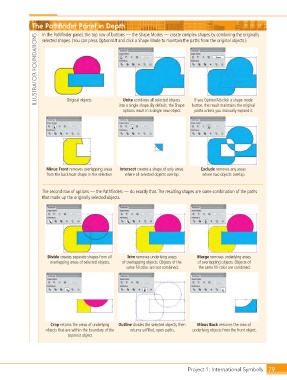
                        In the Pathfinder panel, the top row of buttons — the Shape Modes — create complex shapes by combining the originally
                     ILLUSTRATOR FOUNDATIONS
                        selected shapes. (You can press Option/Alt and click a Shape Mode to maintain the paths from the original objects.)


                                  Original objects
                                                         Unite combines all selected objects
                                                                                      If you Option/Alt-click a shape mode
                                                       into a single shape. By default, the Shape
                                                         options result in a single new object.   button, the result maintains the original
                                                                                      paths unless you manually expand it.


                         Minus Front removes overlapping areas   Intersect creates a shape of only areas   Exclude removes any areas
                         from the backmost shape in the selection.  where all selected objects overlap.  where two objects overlap.


                        The second row of options — the Pathfinders — do exactly that. The resulting shapes are some combination of the paths
                        that made up the originally selected objects.


                          Divide creates separate shapes from all   Trim removes underlying areas   Merge removes underlying areas
                           overlapping areas of selected objects.  of overlapping objects. Objects of the   of overlapping objects. Objects of
                                                          same fill color are not combined.  the same fill color are combined.


                           Crop returns the areas of underlying   Outline divides the selected objects, then   Minus Back removes the area of
                         objects that are within the boundary of the   returns unfilled, open paths.  underlying objects from the front object.
                                  topmost object.


                                                                                   Project 1: International Symbols  79

