


Page 55 - Adobe Photoshop 2022
P. 55
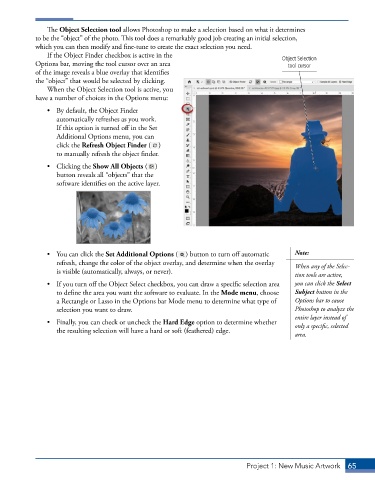
The Object Selection tool allows Photoshop to make a selection based on what it determines
            to be the “object” of the photo. This tool does a remarkably good job creating an initial selection,
            which you can then modify and fine-tune to create the exact selection you need.
               If the Object Finder checkbox is active in the                          Object Selection
            Options bar, moving the tool cursor over an area                             tool cursor
            of the image reveals a blue overlay that identifies
            the “object” that would be selected by clicking.
               When the Object Selection tool is active, you
            have a number of choices in the Options menu:
               •  By default, the Object Finder
                  automatically refreshes as you work.
                  If this option is turned off in the Set
                  Additional Options menu, you can
                  click the Refresh Object Finder (  )
                  to manually refresh the object finder.

               •  Clicking the Show All Objects (  )
                  button reveals all “objects” that the
                  software identifies on the active layer.


               •  You can click the Set Additional Options (  ) button to turn off automatic   Note:
                  refresh, change the color of the object overlay, and determine when the overlay   When any of the Selec-
                  is visible (automatically, always, or never).
                                                                                           tion tools are active,
               •  If you turn off the Object Select checkbox, you can draw a specific selection area   you can click the Select
                  to define the area you want the software to evaluate. In the Mode menu, choose   Subject button in the
                  a Rectangle or Lasso in the Options bar Mode menu to determine what type of   Options bar to cause
                  selection you want to draw.                                              Photoshop to analyze the
                                                                                           entire layer instead of
               •  Finally, you can check or uncheck the Hard Edge option to determine whether   only a specific, selected
                  the resulting selection will have a hard or soft (feathered) edge.
                                                                                           area.


                                                                            Project 1: New Music Artwork   65

