


Page 40 - Adobe Photoshop 2022
P. 40
Place Files as Smart Object Layers
         As you have seen in the last few exercises, copying layer content from one file to   Note:
         another results in new regular layers for the pasted content. Photoshop also supports
         Smart Object layers, in which you place one file into another instead of pasting layer   Smart Objects enable
         content. Smart Objects provide a number of advantages over regular layers, which   tight integration
         you will explore later in this project. In this exercise, you will create a Smart Object   between Photoshop and
         layer for the remaining image element.                                         Illustrator. You can
                                                                                        take advantage of the
           1.  With cd-artwork.psd open, choose File>Place Embedded.                    sophisticated vector-
               Two options in the File menu — Place Embedded and Place Linked — give you the   editing features in
               option to embed the placed file data into the active file, or to place smart objects as   Adobe Illustrator, and
               links to the original placed file. (See Page 51 for more about placing linked files.)   then place those files
                                                                                        into Photoshop without
           2.  Choose the Title-text.psd file (in your WIP>Music folder) and click Place.   losing the ability to edit
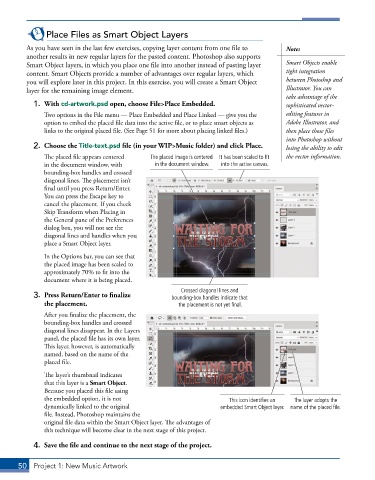
               The placed file appears centered   The placed image is centered   It has been scaled to fit   the vector information.
               in the document window, with     in the document window.  into the active canvas.
               bounding-box handles and crossed
               diagonal lines. The placement isn’t
               final until you press Return/Enter.
               You can press the Escape key to
               cancel the placement. If you check
               Skip Transform when Placing in
               the General pane of the Preferences
               dialog box, you will not see the
               diagonal lines and handles when you
               place a Smart Object layer.
               In the Options bar, you can see that
               the placed image has been scaled to
               approximately 70% to fit into the
               document where it is being placed.

                                                        Crossed diagonal lines and
           3.  Press Return/Enter to finalize        bounding-box handles indicate that
              the placement.                           the placement is not yet final.
               After you finalize the placement, the
               bounding-box handles and crossed
               diagonal lines disappear. In the Layers
               panel, the placed file has its own layer.
               This layer, however, is automatically
               named, based on the name of the
               placed file.

               The layer’s thumbnail indicates
               that this layer is a Smart Object.
               Because you placed this file using
               the embedded option, it is not                          This icon identifies an   The layer adopts the
               dynamically linked to the original                   embedded Smart Object layer.  name of the placed file.
               file. Instead, Photoshop maintains the
               original file data within the Smart Object layer. The advantages of
               this technique will become clear in the next stage of this project.

           4.  Save the file and continue to the next stage of the project.


       50  Project 1: New Music Artwork

