


Page 36 - Adobe Photoshop 2022
P. 36
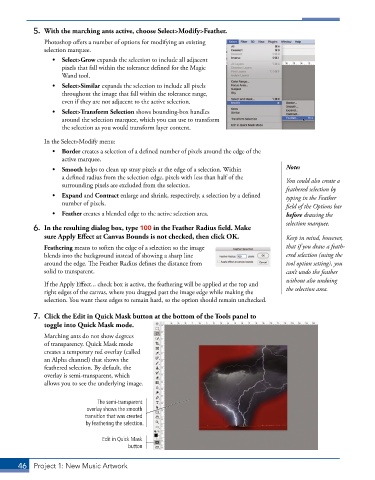
5.  With the marching ants active, choose Select>Modify>Feather.
               Photoshop offers a number of options for modifying an existing
               selection marquee.
                 •  Select>Grow expands the selection to include all adjacent
                    pixels that fall within the tolerance defined for the Magic
                    Wand tool.
                 •  Select>Similar expands the selection to include all pixels
                    throughout the image that fall within the tolerance range,
                    even if they are not adjacent to the active selection.
                 •  Select>Transform Selection shows bounding-box handles
                    around the selection marquee, which you can use to transform
                    the selection as you would transform layer content.
               In the Select>Modify menu:
                 •  Border creates a selection of a defined number of pixels around the edge of the
                    active marquee.
                 •  Smooth helps to clean up stray pixels at the edge of a selection. Within   Note:
                    a defined radius from the selection edge, pixels with less than half of the   You could also create a
                    surrounding pixels are excluded from the selection.
                                                                                        feathered selection by
                 •  Expand and Contract enlarge and shrink, respectively, a selection by a defined   typing in the Feather
                    number of pixels.                                                   field of the Options bar
                 •  Feather creates a blended edge to the active selection area.        before drawing the
                                                                                        selection marquee.
           6.  In the resulting dialog box, type 100 in the Feather Radius field. Make
               sure Apply Effect at Canvas Bounds is not checked, then click OK.        Keep in mind, however,
               Feathering means to soften the edge of a selection so the image          that if you draw a feath-
               blends into the background instead of showing a sharp line               ered selection (using the
               around the edge. The Feather Radius defines the distance from            tool option setting), you
               solid to transparent.                                                    can’t undo the feather
                                                                                        without also undoing
               If the Apply Effect... check box is active, the feathering will be applied at the top and
               right edges of the canvas, where you dragged past the image edge while making the   the selection area.
               selection. You want these edges to remain hard, so the option should remain unchecked.

           7.  Click the Edit in Quick Mask button at the bottom of the Tools panel to
              toggle into Quick Mask mode.
               Marching ants do not show degrees
               of transparency. Quick Mask mode
               creates a temporary red overlay (called
               an Alpha channel) that shows the
               feathered selection. By default, the
               overlay is semi-transparent, which
               allows you to see the underlying image.


                               The semi-transparent
                           overlay shows the smooth
                           transition that was created
                           by feathering the selection.

                                Edit in Quick Mask
                                        button


       46  Project 1: New Music Artwork

