


Page 10 - Adobe Photoshop 2022
P. 10
CONTENTS


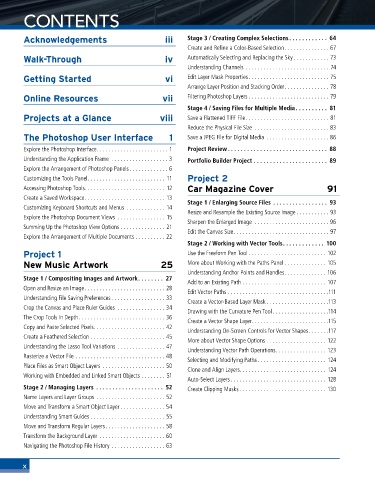
        Acknowledgements	                          iii    Stage 3 / Creating Complex Selections  . . . . . . . . . . . . 64
                                                          Create and Refine a Color-Based Selection............... 67
        Walk-Through	                              iv     Automatically Selecting and Replacing the Sky............ 73
                                                          Understanding Channels ............................ 74
        Getting	Started	                           vi     Edit Layer Mask Properties........................... 75
                                                          Arrange Layer Position and Stacking Order............... 78
        Online	Resources	                          vii    Filtering Photoshop Layers ........................... 79
                                                          Stage 4 / Saving Files for Multiple Media  . . . . . . . . . . 81
        Projects	at	a	Glance	                     viii    Save a Flattened TIFF File............................ 81
                                                          Reduce the Physical File Size ......................... 83
        The	Photoshop	User	Interface	                1    Save a JPEG File for Digital Media ..................... 86

        Explore the Photoshop Interface........................ 1  Project Review  . . . . . . . . . . . . . . . . . . . . . . . . . . . . . . . 88
        Understanding the Application Frame ................... 3  Portfolio Builder Project  . . . . . . . . . . . . . . . . . . . . . . . 89
        Explore the Arrangement of Photoshop Panels............. 6
        Customizing the Tools Panel.......................... 11  Project	2
        Accessing Photoshop Tools........................... 12  Car	Magazine	Cover	                 91
        Create a Saved Workspace........................... 13
                                                          Stage 1 / Enlarging Source Files  . . . . . . . . . . . . . . . . . 93
        Customizing Keyboard Shortcuts and Menus ............. 14
                                                          Resize and Resample the Existing Source Image ........... 93
        Explore the Photoshop Document Views ................ 15
                                                          Sharpen the Enlarged Image ......................... 96
        Summing Up the Photoshop View Options ............... 21
                                                          Edit the Canvas Size................................ 97
        Explore the Arrangement of Multiple Documents .......... 22
                                                          Stage 2 / Working with Vector Tools . . . . . . . . . . . . . 100
        Project	1	                                        Use the Freeform Pen Tool .......................... 102
        New	Music	Artwork	                        25      More about Working with the Paths Panel .............. 105
                                                          Understanding Anchor Points and Handles.............. 106
        Stage 1 / Compositing Images and Artwork . . . . . . . . 27
                                                          Add to an Existing Path ............................ 107
        Open and Resize an Image........................... 28
                                                          Edit Vector Paths ..................................111
        Understanding File Saving Preferences .................. 33
                                                          Create a Vector-Based Layer Mask .....................113
        Crop the Canvas and Place Ruler Guides ................ 34
                                                          Drawing with the Curvature Pen Tool...................114
        The Crop Tools in Depth............................. 36
                                                          Create a Vector Shape Layer..........................115
        Copy and Paste Selected Pixels........................ 42
                                                          Understanding On-Screen Controls for Vector Shapes.......117
        Create a Feathered Selection ......................... 45
                                                          More about Vector Shape Options .................... 122
        Understanding the Lasso Tool Variations ................ 47
                                                          Understanding Vector Path Operations................. 123
        Rasterize a Vector File .............................. 48
                                                          Selecting and Modifying Paths....................... 124
        Place Files as Smart Object Layers ..................... 50
                                                          Clone and Align Layers............................. 124
        Working with Embedded and Linked Smart Objects ........ 51
                                                          Auto-Select Layers ................................ 128
        Stage 2 / Managing Layers   . . . . . . . . . . . . . . . . . . . . . 52  Create Clipping Masks ............................. 130
        Name Layers and Layer Groups ....................... 52
        Move and Transform a Smart Object Layer ............... 54
        Understanding Smart Guides ......................... 55
        Move and Transform Regular Layers.................... 58
        Transform the Background Layer  ...................... 60
        Navigating the Photoshop File History .................. 63


        x

