


Page 73 - Adobe Photoshop 2021
P. 73
15.  Press Return/Enter to finalize the transformation.

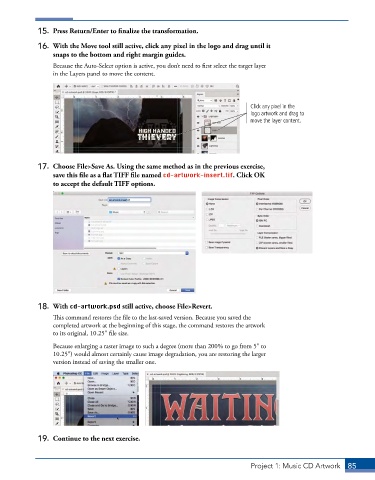
             16.  With the Move tool still active, click any pixel in the logo and drag until it
                 snaps to the bottom and right margin guides.
                 Because the Auto-Select option is active, you don’t need to first select the target layer
                 in the Layers panel to move the content.


                                                                             Click any pixel in the
                                                                             logo artwork and drag to
                                                                             move the layer content.


             17.  Choose File>Save As. Using the same method as in the previous exercise,
                 save this file as a flat TIFF file named cd-artwork-insert.tif. Click OK
                 to accept the default TIFF options.


             18.  With cd-artwork.psd still active, choose File>Revert.
                 This command restores the file to the last-saved version. Because you saved the
                 completed artwork at the beginning of this stage, the command restores the artwork
                 to its original, 10.25″ file size.
                 Because enlarging a raster image to such a degree (more than 200% to go from 5″ to
                 10.25″) would almost certainly cause image degradation, you are restoring the larger
                 version instead of saving the smaller one.


             19.  Continue to the next exercise.


                                                                              Project 1: Music CD Artwork  85

