


Page 72 - Adobe Photoshop 2021
P. 72
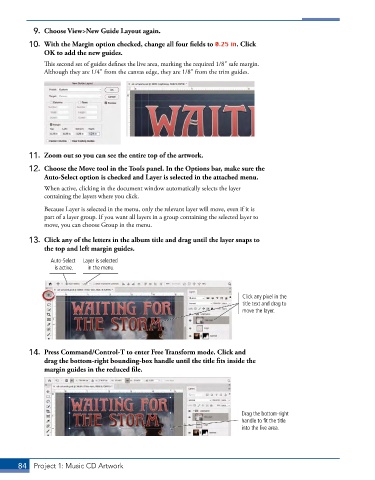
9.  Choose View>New Guide Layout again.

          10.  With the Margin option checked, change all four fields to 0.25 in. Click
              OK to add the new guides.
               This second set of guides defines the live area, marking the required 1/8″ safe margin.
               Although they are 1/4″ from the canvas edge, they are 1/8″ from the trim guides.


          11.  Zoom out so you can see the entire top of the artwork.
          12.  Choose the Move tool in the Tools panel. In the Options bar, make sure the
              Auto-Select option is checked and Layer is selected in the attached menu.
               When active, clicking in the document window automatically selects the layer
               containing the layers where you click.
               Because Layer is selected in the menu, only the relevant layer will move, even if it is
               part of a layer group. If you want all layers in a group containing the selected layer to
               move, you can choose Group in the menu.

          13.  Click any of the letters in the album title and drag until the layer snaps to
              the top and left margin guides.

                 Auto-Select   Layer is selected
                  is active.  in the menu.


                                                                           Click any pixel in the
                                                                           title text and drag to
                                                                           move the layer.


          14.  Press Command/Control-T to enter Free Transform mode. Click and
              drag the bottom-right bounding-box handle until the title fits inside the
              margin guides in the reduced file.


                                                                           Drag the bottom-right
                                                                           handle to fit the title
                                                                           into the live area.


       84  Project 1: Music CD Artwork

