


Page 11 - CC2017_ID_Look_Inside
P. 11
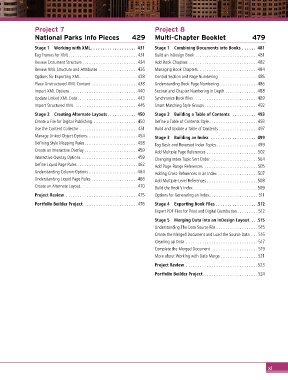
Project 7                                         Project 8
               National Parks Info Pieces              429       Multi-Chapter Booklet                   479

               Stage 1  Working with XML . . . . . . . . . . . . . . . . . . . 431  Stage 1  Combining Documents into Books  . . . . . . 481
               Tag Frames for XML.............................. 431  Build an InDesign Book ...........................481
               Review Document Structure ........................434  Add Book Chapters ..............................482
               Review XML Structure and Attributes .................436  Managing Book Chapters..........................484
               Options for Exporting XML.........................438  Control Section and Page Numbering .................485
               Place Unstructured XML Content ....................438  Understanding Book Page Numbering.................486
               Import XML Options .............................440  Section and Chapter Numbering in Depth ..............488
               Update Linked XML Data ..........................443  Synchronize Book Files  ...........................489
               Import Structured XML ...........................445  Smart Matching Style Groups ....................... 492

               Stage 2  Creating Alternate Layouts  . . . . . . . . . . . . 450  Stage 2  Building a Table of Contents   . . . . . . . . . . 493
               Create a File for Digital Publishing ...................450  Define a Table of Contents Style ..................... 493
               Use the Content Collector ......................... 451  Build and Update a Table of Contents ................. 497
               Manage Linked Object Options......................454  Stage 3  Building an Index   . . . . . . . . . . . . . . . . . . . 499
               Defining Style Mapping Rules.......................458  Tag Basic and Reversed Index Topics..................499
               Create an Interactive Overlay ....................... 459  Add Multiple Page References ......................502
               Interactive Overlay Options  ........................ 459  Changing Index Topic Sort Order ....................504
               Define Liquid Page Rules ..........................462  Add Page-Range References .......................505
               Understanding Column Options .....................464  Adding Cross-References in an Index .................507
               Understanding Liquid Page Rules ....................466  Add Multiple-Level References ......................508
               Create an Alternate Layout......................... 470  Build the Book’s Index............................509

               Project Review ............................... 475  Options for Generating an Index..................... 511
               Portfolio Builder Project........................ 476  Stage 4  Exporting Book Files  . . . . . . . . . . . . . . . . .  .512
                                                                 Export PDF Files for Print and Digital Distribution......... 512
                                                                 Stage 5  Merging Data into an InDesign Layout . . .  .515
                                                                 Understanding The Data Source File .................. 515
                                                                 Create the Merged Document and Load the Source Data ... 516
                                                                 Cleaning up Data ............................... 517
                                                                 Complete the Merged Document .................... 519
                                                                 More about Working with Data Merge ................ 521

                                                                 Project Review ...............................523
                                                                 Portfolio Builder Project........................ 524


                                                                                                                xi

