


Page 20 - Adobe Indesign CC 2020
P. 20
Understanding Document Presets

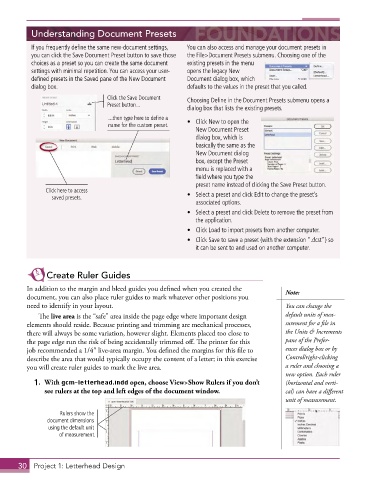
           If you frequently define the same new-document settings,   You can also access and manage your document presets in
           you can click the Save Document Preset button to save those   the File>Document Presets submenu . Choosing one of the
           choices as a preset so you can create the same document   existing presets in the menu
           settings with minimal repetition . You can access your user-  opens the legacy New
           defined presets in the Saved pane of the New Document   Document dialog box, which
           dialog box .                                   defaults to the values in the preset that you called .
                                  Click the Save Document   Choosing Define in the Document Presets submenu opens a
                                  Preset button...
                                                          dialog box that lists the existing presets .
                                  ...then type here to define a
                                  name for the custom preset.  •  Click New to open the
                                                             New Document Preset
                                                             dialog box, which is
                                                             basically the same as the
                                                             New Document dialog
                                                             box, except the Preset
                                                             menu is replaced with a
                                                             field where you type the
                                                             preset name instead of clicking the Save Preset button .
               Click here to access
                 saved presets.                           •  Select a preset and click Edit to change the preset’s
                                                             associated options .
                                                          •  Select a preset and click Delete to remove the preset from
                                                             the application .
                                                          •  Click Load to import presets from another computer .
                                                          •  Click Save to save a preset (with the extension “ .dcst”) so
                                                             it can be sent to and used on another computer .


               Create Ruler Guides

         In addition to the margin and bleed guides you defined when you created the    Note:
         document, you can also place ruler guides to mark whatever other positions you
         need to identify in your layout.                                               You can change the
             The live area is the “safe” area inside the page edge where important design   default units of mea-
         elements should reside. Because printing and trimming are mechanical processes,   surement for a file in
         there will always be some variation, however slight. Elements placed too close to   the Units & Increments
         the page edge run the risk of being accidentally trimmed off. The printer for this   pane of the Prefer-
         job recommended a 1/4″ live-area margin. You defined the margins for this file to   ences dialog box or by
         describe the area that would typically occupy the content of a letter; in this exercise   Control/right-clicking
         you will create ruler guides to mark the live area.                            a ruler and choosing a
                                                                                        new option. Each ruler
           1.  With gcm-letterhead.indd open, choose View>Show Rulers if you don’t      (horizontal and verti-
               see rulers at the top and left edges of the document window.             cal) can have a different
                                                                                        unit of measurement.

                   Rulers show the
               document dimensions
                using the default unit
                   of measurement.


       30  Project 1: Letterhead Design

