


Page 18 - CC2018_AI_Look_Inside
P. 18
draW roundEd rEctanglEs
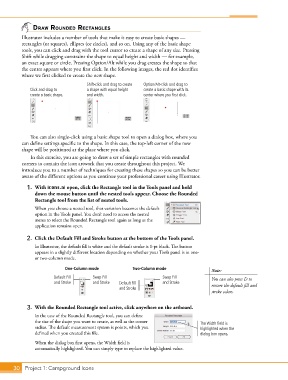
          Illustrator includes a number of tools that make it easy to create basic shapes —
          rectangles (or squares), ellipses (or circles), and so on. Using any of the basic shape
          tools, you can click and drag with the tool cursor to create a shape of any size. Pressing
          Shift while dragging constrains the shape to equal height and width — for example,
          an exact square or circle. Pressing Option/Alt while you drag creates the shape so that
          the center appears where you first click. In the following images, the red dot identifies
          where we first clicked to create the new shape.

                                     Shift-click and drag to create   Option/Alt-click and drag to
             Click and drag to       a shape with equal height   create a basic shape with its
             create a basic shape.   and width.             center where you first click.


              You can also single-click using a basic shape tool to open a dialog box, where you
          can define settings specific to the shape. In this case, the top-left corner of the new
          shape will be positioned at the place where you click.
              In this exercise, you are going to draw a set of simple rectangles with rounded
          corners to contain the icon artwork that you create throughout this project. We
          introduce you to a number of techniques for creating these shapes so you can be better
          aware of the different options as you continue your professional career using Illustrator.

            1.  With icons.ai open, click the Rectangle tool in the Tools panel and hold
               down the mouse button until the nested tools appear. Choose the Rounded
               Rectangle tool from the list of nested tools.
               When you choose a nested tool, that variation becomes the default
               option in the Tools panel. You don’t need to access the nested
               menu to select the Rounded Rectangle tool again as long as the
               application remains open.

            2.  Click the Default Fill and Stroke button at the bottom of the Tools panel.

               In Illustrator, the default fill is white and the default stroke is 1-pt black. The button
               appears in a slightly different location depending on whether your Tools panel is in one-
               or two-column mode.
                            One-Column mode             Two-Column mode                 Note:

                       Default Fill    Swap Fill                    Swap Fill           You can also press D to
                       and Stroke      and Stroke  Default Fill     and Stroke          restore the default fill and
                                                  and Stroke
                                                                                        stroke colors.

            3.  With the Rounded Rectangle tool active, click anywhere on the artboard.
               In the case of the Rounded Rectangle tool, you can define
               the size of the shape you want to create, as well as the corner      The Width field is
               radius. The default measurement system is points, which you          highlighted when the
               defined when you created this file.                                  dialog box opens.

               When the dialog box first opens, the Width field is
               automatically highlighted. You can simply type to replace the highlighted value.


       30 Project 1: Campground Icons

