


Page 15 - CC2018_AI_Look_Inside
P. 15
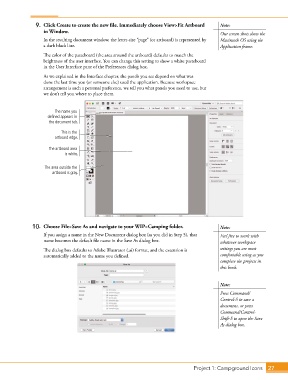
9.  Click Create to create the new file. Immediately choose View>Fit Artboard   Note:
                   in Window.                                                               Our screen shots show the

                   In the resulting document window, the letter-size “page” (or artboard) is represented by   Macintosh OS using the
                   a dark black line.                                                       Application frame.
                   The color of the pasteboard (the area around the artboard) defaults to match the
                   brightness of the user interface. You can change this setting to show a white pasteboard
                   in the User Interface pane of the Preferences dialog box.

                   As we explained in the Interface chapter, the panels you see depend on what was
                   done the last time you (or someone else) used the application. Because workspace
                   arrangement is such a personal preference, we tell you what panels you need to use, but
                   we don’t tell you where to place them.


                        The name you
                     defined appears in
                     the document tab.
                          This is the
                        artboard edge.

                     The artboard area
                            is white.

                   The area outside the
                       artboard is gray.


               10.  Choose File>Save As and navigate to your WIP>Camping folder.            Note:
                   If you assign a name in the New Document dialog box (as you did in Step 5), that    Feel free to work with
                   name becomes the default file name in the Save As dialog box.            whatever workspace

                   The dialog box defaults to Adobe Illustrator (.ai) format, and the extension is   settings you are most
                   automatically added to the name you defined.                             comfortable using as you
                                                                                            complete the projects in
                                                                                            this book.


                                                                                            Note:

                                                                                            Press Command/
                                                                                            Control-S to save a
                                                                                            document, or press
                                                                                            Command/Control-
                                                                                            Shift-S to open the Save
                                                                                            As dialog box.


                                                                                 Project 1: Campground Icons    27

