


Page 51 - CC2017_AI_Look_Inside
P. 51
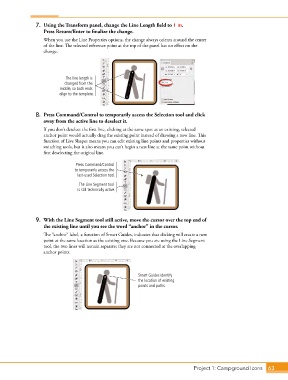
7.  Using the Transform panel, change the Line Length field to 1 in.
                   Press Return/Enter to finalize the change.

                   When you use the Line Properties options, the change always orients around the center
                   of the line. The selected reference point at the top of the panel has no effect on the
                   change.


                            The line length is
                            changed from the
                          middle, so both ends
                          align to the template.


                8.  Press Command/Control to temporarily access the Selection tool and click
                   away from the active line to deselect it.
                   If you don’t deselect the first line, clicking at the same spot as an existing, selected
                   anchor point would actually drag the existing point instead of drawing a new line. This
                   function of Live Shapes means you can edit existing line points and properties without
                   switching tools, but it also means you can’t begin a new line at the same point without
                   first deselecting the original line.


                                Press Command/Control
                                to temporarily access the
                                 last-used Selection tool.

                                  The Line Segment tool
                                 is still technically active.


                9.  With the Line Segment tool still active, move the cursor over the top end of
                   the existing line until you see the word “anchor” in the cursor.
                   The “anchor” label, a function of Smart Guides, indicates that clicking will create a new
                   point at the same location as the existing one. Because you are using the Line Segment
                   tool, the two lines will remain separate; they are not connected at the overlapping
                   anchor points.


                                                          Smart Guides identify
                                                          the location of existing
                                                          points and paths.


                                                                                 Project 1: Campground Icons    63

