


Page 50 - CC2017_AI_Look_Inside
P. 50
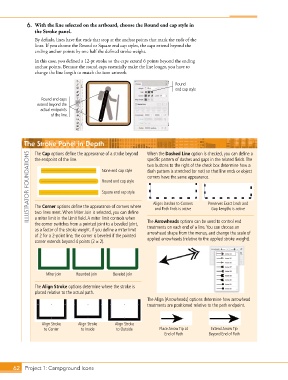
6.  With the line selected on the artboard, choose the Round end cap style in
               the Stroke panel.

               By default, lines have flat ends that stop at the anchor points that mark the ends of the
               lines. If you choose the Round or Square end cap styles, the caps extend beyond the
               ending anchor points by one half the defined stroke weight.

               In this case, you defined a 12-pt stroke so the caps extend 6 points beyond the ending
               anchor points. Because the round caps essentially make the line longer, you have to
               change the line length to match the icon artwork.

                                                                         Round
                                                                         end cap style

                  Round end caps
                extend beyond the
                  actual endpoints
                      of the line.


           The Stroke Panel in Depth                          When the Dashed Line option is checked, you can define a

             ILLUSTRATOR FOUNDATIONS       None end cap style  dash pattern is stretched (or not) so that line ends or object
               The Cap options define the appearance of a stroke beyond
                                                              specific pattern of dashes and gaps in the related fields. The
               the endpoint of the line.
                                                              two buttons to the right of the check box determine how a
                                                              corners have the same appearance.
                                           Round end cap style

                                           Square end cap style

                                                                Aligns Dashes to Corners
                                                                                       Preserves Exact Dash and
               The Corner options define the appearance of corners where
                                                                                        Gap Lengths is active
                                                                 and Path Ends is active
               two lines meet. When Miter Join is selected, you can define
               a miter limit in the Limit field. A miter limit controls when
               the corner switches from a pointed joint to a beveled joint,   The Arrowheads options can be used to control end
                                                              treatments on each end of a line. You can choose an
               as a factor of the stroke weight. If you define a miter limit   arrowhead shape from the menus, and change the scale of
               of 2 for a 2-point line, the corner is beveled if the pointed   applied arrowheads (relative to the applied stroke weight).
               corner extends beyond 4 points (2 1 2).


                    Miter join  Rounded join    Beveled join

               The Align Stroke options determine where the stroke is
               placed relative to the actual path.
                                                              The Align [Arrowheads] options determine how arrowhead
                                                              treatments are positioned relative to the path endpoint.


                  Align Stroke   Align Stroke   Align Stroke
                   to Center      to Inside      to Outside        Place Arrow Tip at   Extend Arrow Tip
                                                                     End of Path       Beyond End of Path


       62 Project 1: Campground Icons

