


Page 21 - CC2017_AI_Look_Inside
P. 21
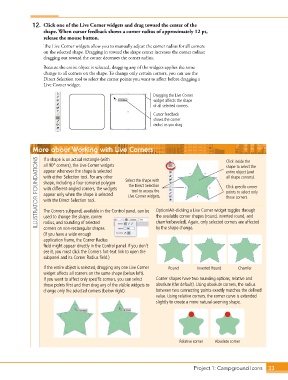
12.  Click one of the Live Corner widgets and drag toward the center of the
                   shape. When cursor feedback shows a corner radius of approximately 12 pt,
                   release the mouse button.
                   The Live Corner widgets allow you to manually adjust the corner radius for all corners
                   on the selected shape. Dragging in toward the shape center increases the corner radius;
                   dragging out toward the corner decreases the corner radius.

                   Because the entire object is selected, dragging any of the widgets applies the same
                   change to all corners on the shape. To change only certain corners, you can use the
                   Direct Selection tool to select the corner points you want to affect before dragging a
                   Live Corner widget.

                                                                Dragging the Live Corner
                                                                widget affects the shape
                                                                of all selected corners.

                                                                Cursor feedback
                                                                shows the corner
                                                                radius as you drag.


               More about Working with Live Corners                                           Click inside the

                ILLUSTRATOR FOUNDATIONS  with either Selection tool. For any other   Select the shape with   entire object (and
                   If a shape is an actual rectangle (with
                   all 90° corners), the Live Corner widgets
                                                                                              shape to select the
                   appear whenever the shape is selected
                                                                                              all shape corners).
                   shape, including a four-cornered polygon
                                                      the Direct Selection
                                                                                              Click specific corner
                   with different-angled corners, the widgets
                                                       tool to access the
                                                                                              points to select only
                   appear only when the shape is selected
                                                      Live Corner widgets.
                                                                                              those corners.
                   with the Direct Selection tool.
                                                                 Option/Alt-clicking a Live Corner widget toggles through
                   The Corners subpanel, available in the Control panel, can be
                   used to change the shape, corner
                                                                 chamfer/beveled). Again, only selected corners are affected
                   radius, and rounding of selected
                                                                 by the shape change.
                   corners on non-rectangular shapes.
                   (If you have a wide enough                    the available corner shapes (round, inverted round, and
                   application frame, the Corner Radius
                   field might appear directly in the Control panel. If you don’t
                   see it, you must click the Corners hot-text link to open the
                   subpanel and its Corner Radius field.)
                   If the entire object is selected, dragging any one Live Corner   Round  Inverted Round  Chamfer
                   widget affects all corners on the same shape (below left).
                   If you want to affect only specific corners, you can select   Corner shapes have two rounding options, relative and
                   those points first and then drag any of the visible widgets to   absolute (the default). Using absolute corners, the radius
                   change only the selected corners (below right).  between two connecting points exactly matches the defined
                                                                 value. Using relative corners, the corner curve is extended
                                                                 slightly to create a more natural-seeming shape.


                                                                           Relative corner  Absolute corner


                                                                                 Project 1: Campground Icons    33

