


Page 4 - Adobe Illustrator 2022
P. 4
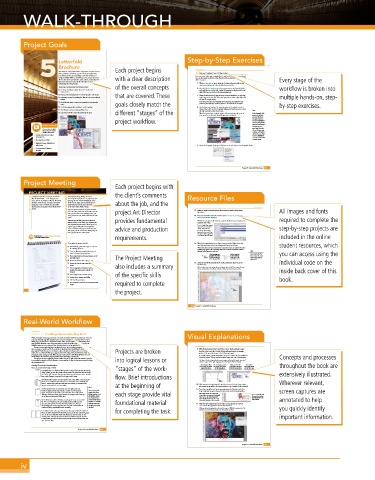
WALK-THROUGH
Project Goals
5 Letterfold Each project begins Step-by-Step Exercises
Brochure
Your client is a non-profit artists’ cooperative in San Francisco
Import Styles from Other Files
that coordinates and hosts special events throughout the
year. This year they are launching a new “Art of Science”
You can also import styles from other Illustrator files so those styles can be used for
program, which will be a month-long series of special events with a clear description Once you create styles, you can apply them to any text in the file, on any artboard.
all over the city to promote the city’s artistic community. You different projects. Every stage of the
have been hired to create the first brochure to begin
advertising the new program. 1. With aos-brochure.ai open, make the Outside artboard visible in the
document window and make the Selection tool active.
This project incorporates the following skills: of the overall concepts workflow is broken into
o Creating a folding template that meets production 2. Place the file cac_outside.docx into a type area on the Outside Fold In
artboard (the one on the left). Include formatting in the placed file, and
requirements click OK if you see the Font Problems dialog box.
o Placing and managing links to external graphics and images that are covered. These 3. Using the Selection tool, drag the new text area’s handles so its top edge multiple hands-on, step-
o Importing text and controlling the flow of text across multiple begins approximately 1/8″ below the logo and the other edges align with
frames the panel’s margin guides.
o Working with styles to automate repetitive text-formatting goals closely match the Don’t worry about the text overlapping the bottom image. You will correct this
problem as you apply type-formatting options in the remainder of this project.
tasks by-step exercises.
o Correcting typographic problems, such as widows 4. Use the Type tool to place the insertion point in the placed text, then
o Checking for and correcting spelling errors choose Select>All. Use the Paragraph Styles panel Options menu to clear Note:
the style overrides in the selected text.
o Exporting PDF files of specific artboards for print different “stages” of the When the insertion point is placed, the Select All command selects all text in the If the Paragraph Styles
panel is closed before
active story. Text in other (non-threaded) type areas is not selected.
you select all the text,
project workflow. the applied style does
not appear highlighted
when you first open the
Videos to Watch panel. To work around
this bug, open the
Access these helpful panel, and then select
videos in your online the text that you want
student resources: to format. The applied
Letterfold Brochure Project style (in this case, Body
Copy+) is highlighted
Introduction so you can use the Clear
Placing External Files Overrides option.
Using the Puppet Warp Tool
in lllustrator 5. Open the Paragraph Styles panel Options menu and choose Load Paragraph Styles.
Cropping and Clipping
Images
Project 5: Letterfold Brochure 291
Project Meeting
Each project begins with
PROJECT MEETING A lot of people design folding documents the client’s comments Resource Files
I really don’t have that much input on what the
client comments expert opinion to produce an effective, functional art director comments each page the size of the final folded job. Other about the job, and the 13. Make the Inside artboard active in the document window, then choose All images and fonts
flyer should look like — I am relying on your
incorrectly. Some people use a six-page layout with
people use two pages, each one divided into three
brochure. I have the text, two logos, and several
equal “columns.” In both cases, all panels on the job
images that I want to include; you can modify
those pictures as necessary to better fit the overall
are the same width, which is wrong.
project.
project Art Director
Paper has inherent thickness; any panel that folds
“in” to the other panels needs to be smaller than the
File>Place.
other panels. In the case of a folding brochure, the
inside panel needs to be 1/16 smaller than the other
dna.ai, and einstein-light.jpg.
panels.
Different types of folding documents also have provides fundamental 14. Press Command/Control, then click to select aos-logo.ai, cac-logo.ai, required to complete the
With the Link option still checked, uncheck the Show Import Options box
different facing- or non-facing-page requirements. and then click Place.
For a letterfold, the job needs to be set up on two The Link and Show Import
separate “pages” with guides and margins that Options boxes remember step-by-step projects are
mirror each other. One page has the front panel, advice and production the last-used value. If
back panel, and the outside of the folding flap; the you do not show import
other page has the three inside panels. options, the last-used Crop
To option will be applied to
Watch the video Letterfold Brochure Project Introduction any selected Illustrator files. included in the online
in your online student resources. To complete this project, you will: requirements. 15. With four images loaded in the Place cursor, press the Right Arrow key student resources, which
project objectives o Define folding guides and margins as required The Project Meeting until the cursor shows the fourth image (4/4) as the active one. Note: you can access using the
When more than one image is loaded in the cursor, the images are loaded in the order
for a folding document
in which they appear in the containing folder. You can use the arrow keys to make a
different loaded image the active one.
o Create an Illustrator template file so you can
access a common layout again later
You can press the ESC
Selected images are
Use the arrow keys
key to remove the active
o Place images based on the panel position in the
to make a different
loaded in the order in
which they appear in
image active in the
loaded image from the
final folded piece
loaded Place cursor.
the containing folder.
o Import and format client-supplied copy
o Manage the flow of copy across multiple text 16. Click the top-left bleed guide of the Inside artboard to place the active Place cursor. individual code on the
frames also includes a summary loaded image.
o Define paragraph and character styles to After you place the active image, the next image is active in the Place cursor. Because
the one you just placed was image 4, image 1 is the next one to become active.
simplify formatting across multiple text inside back cover of this
elements
o Control hyphenation and line spacing of the specific skills
o Format tabs to improve readability book.
o Check spelling in a layout
o Save artboards as PDF files for commercial print required to complete
output
the project.
Project 5: Letterfold Brochure
264 Project 5: Letterfold Brochure
Real-World Workflow
STAGE 1 / Creating Documents that Fold
When you design entire pages, you need to be aware of several important measurements. Trim size Visual Explanations
is the size of the flat page (for example, a letter-size piece of paper has a trim size of 8.5 1 11).
When pages are printed on a commercial output device, they are typically combined with other
pages (possibly multiple copies of the same page) on a large press sheet. After the ink is dry, the
individual pages are cut or trimmed from the press sheets to end up with the final job.
Because commercial printing is a mechanical process, there is inherent variation in the output
from one page to another and in the accuracy of any given device (including the cutters that cut 9. With the first image in the loaded Place cursor, click and drag to place
apart pages). Bleed allowance is the distance objects should extend beyond the trim. Using a bleed Projects are broken that file at the top of the Outside Fold In artboard, inside the margin
ensures that no unwanted white space appears around the edges of the final trimmed output (if there guides of the panel (as shown in the following image).
is variation in the cutting process). Most printers require at least a 1/8 bleed allowance, but you If you click and drag with the loaded Place cursor, you can define the area in which the
should always check with the output provider who is producing a specific job. loaded file is placed. This area retains the original aspect ratio of the file being placed. Concepts and processes
Live area is the space within the trim area where it is safe to place important content. Live area into logical lessons or
is essentially the opposite of bleed allowance; content within the live area remains untouched during Use Smart Guides to begin the placement marquee at the top-left guide corner and
the trimming process. end the marquee at the right margin guide on the Outside Fold In artboard.
Click and drag to define
Folding Document Considerations the area where the loaded The area always maintains mouse button, the placed automatically loaded throughout the book are
When you release the
The next file is
the original aspect ratio of
There are several common types of folds: “stages” of the work- image will be placed. the file being placed. file fills the area you drew. into the Place cursor.
Letterfolds have two folds and three panels to a side. These are often incorrectly
called “trifold” because they result in three panels. The panel that folds in should
be 1/163 to 1/83 narrower than the two outside panels. Ask your service provider extensively illustrated.
how much allowance is required for the paper you’re using. flow. Brief introductions
Accordion folds can have as many panels as you prefer. When it has six panels
(three on each side), it’s often referred to as a Z-fold because it looks like the Wherever relevant,
letter Z. Because the panels don’t fold into one another, an accordion-fold 10. With the second image loaded in the Place cursor, click and drag to place
document has panels of consistent width. at the beginning of the second image within the margin guides on the Outside Center artboard.
Note:
Double-parallel folds are commonly used for eight-panel rack 11. Press Command/Control to temporarily access the Selection tool, then
brochures (such as those often found in a hotel or travel agency). Some service provid- drag the placed image to align with the bottom and left margin guides. screen captures are
Again, the panels on the inside are narrower than the outside panels. ers give their clients each stage provide vital When you release the Command/
This type of fold uses facing pages because the margins need to line up folding templates to use Control key, you return to the loaded Press Command/Control
on the front and back sides of the sheet. for building a layout. Place cursor. The third loaded file to access the Selection
You should ask your automatically becomes active in the tool and reposition the
Barrel folds (also called roll folds) are perhaps the most common fold service provider if these cursor after you place the second file. placed image. annotated to help
for 14 1 8.53 brochures. The two outside panels are full size, and templates are available foundational material
each successive panel is narrower than the previous one. You can before you waste time 12. With the third image loaded in the Place cursor, click at the top-left
theoretically have as many panels as you want, but at some point the and effort reinventing corner of the bleed guide for the Outside artboard.
number of fold-in panels will become unwieldy. the wheel. Clicking without dragging places the loaded image at 100% of its original size. The you quickly identify
Gate folds result in a four-panel document. The paper is folded in half, and for completing the task. top-left corner of the image is placed at the location you click.
then each half is folded in half toward the center, so the two ends of the paper
meet at the center fold. The panels that fold in are narrower than the two
outside panels. This type of brochure allows two different spreads: the first important information.
revealed when you open the outer panels, and the second revealed when you
open the inner flaps.
Project 5: Letterfold Brochure 247
Project 5: Letterfold Brochure 263
iv

