


Page 37 - Adobe Illustrator 2022
P. 37
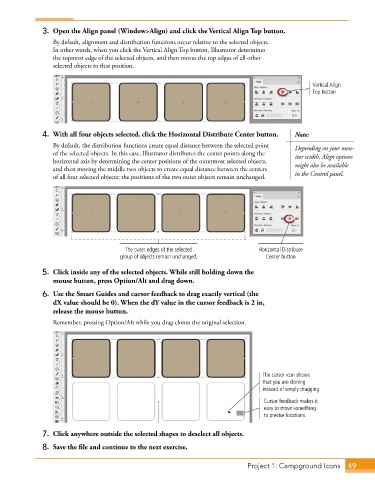
3.  Open the Align panel (Window>Align) and click the Vertical Align Top button.
                 By default, alignment and distribution functions occur relative to the selected objects.
                 In other words, when you click the Vertical Align Top button, Illustrator determines
                 the topmost edge of the selected objects, and then moves the top edges of all other
                 selected objects to that position.


                                                                                                Vertical Align
                                                                                                Top button


              4.  With all four objects selected, click the Horizontal Distribute Center button.   Note:
                 By default, the distribution functions create equal distance between the selected point   Depending on your mon-
                 of the selected objects. In this case, Illustrator distributes the center points along the   itor width, Align options
                 horizontal axis by determining the center positions of the outermost selected objects,   might also be available
                 and then moving the middle two objects to create equal distance between the centers
                 of all four selected objects; the positions of the two outer objects remain unchanged.  in the Control panel.


                                       The outer edges of the selected          Horizontal Distribute
                                      group of objects remain unchanged.          Center button

              5.  Click inside any of the selected objects. While still holding down the
                 mouse button, press Option/Alt and drag down.
              6.  Use the Smart Guides and cursor feedback to drag exactly vertical (the
                 dX value should be 0). When the dY value in the cursor feedback is 2 in,
                 release the mouse button.

                 Remember, pressing Option/Alt while you drag clones the original selection.


                                                                                 The cursor icon shows
                                                                                 that you are cloning
                                                                                 instead of simply dragging.

                                                                                  Cursor feedback makes it
                                                                                  easy to move something
                                                                                  to precise locations.


              7.  Click anywhere outside the selected shapes to deselect all objects.
              8.  Save the file and continue to the next exercise.


                                                                             Project 1: Campground Icons   49

