


Page 42 - Adobe Illustrator 2022
P. 42
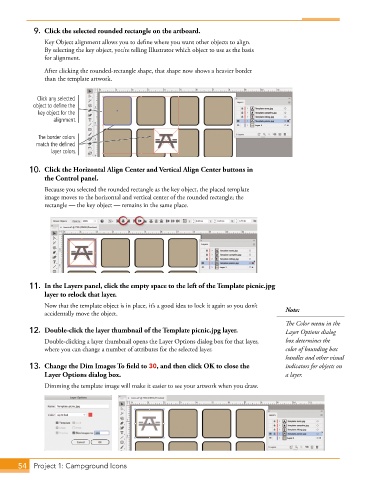
9.  Click the selected rounded rectangle on the artboard.
               Key Object alignment allows you to define where you want other objects to align.
               By selecting the key object, you’re telling Illustrator which object to use as the basis
               for alignment.

               After clicking the rounded-rectangle shape, that shape now shows a heavier border
               than the template artwork.


            Click any selected
           object to define the
             key object for the
                 alignment.


             The border colors
            match the defined
                 layer colors.


          10.  Click the Horizontal Align Center and Vertical Align Center buttons in
               the Control panel.
               Because you selected the rounded rectangle as the key object, the placed template
               image moves to the horizontal and vertical center of the rounded rectangle; the
               rectangle — the key object — remains in the same place.


          11.  In the Layers panel, click the empty space to the left of the Template picnic.jpg
               layer to relock that layer.
               Now that the template object is in place, it’s a good idea to lock it again so you don’t   Note:
               accidentally move the object.
                                                                                        The Color menu in the
          12.  Double-click the layer thumbnail of the Template picnic.jpg layer.       Layer Options dialog
               Double-clicking a layer thumbnail opens the Layer Options dialog box for that layer,   box determines the
               where you can change a number of attributes for the selected layer.      color of bounding box
                                                                                        handles and other visual
          13.  Change the Dim Images To field to 30, and then click OK to close the     indicators for objects on
               Layer Options dialog box.                                                a layer.

               Dimming the template image will make it easier to see your artwork when you draw.


       54  Project 1: Campground Icons

