


Page 36 - Adobe Illustrator 2022
P. 36
Align and Distribute Objects                                            Note:
         In addition to dragging objects around the artboard, the Illustrator Align panel   When multiple objects are
         makes it very easy to align and distribute selected objects relative to one another, to   selected, you can access the
         a specific key object in the file, or to the overall artboard. In this exercise, you learn   basic Align options in the
         how to use the Align panel to align shapes.
                                                                                       Properties panel. Click
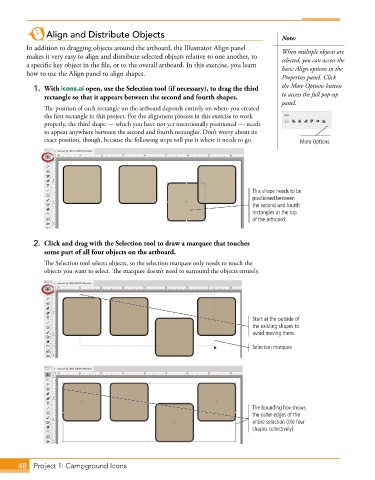
           1.  With icons.ai open, use the Selection tool (if necessary), to drag the third   the More Options button
               rectangle so that it appears between the second and fourth shapes.      to access the full pop-up
                                                                                       panel.
               The position of each rectangle on the artboard depends entirely on where you created
               the first rectangle in this project. For the alignment process in this exercise to work
               properly, the third shape — which you have not yet intentionally positioned — needs
               to appear anywhere between the second and fourth rectangles. Don’t worry about its
               exact position, though, because the following steps will put it where it needs to go.  More Options


                                                                              This shape needs to be
                                                                              positioned between
                                                                              the second and fourth
                                                                              rectangles at the top
                                                                              of the artboard.


           2.  Click and drag with the Selection tool to draw a marquee that touches
              some part of all four objects on the artboard.
               The Selection tool selects objects, so the selection marquee only needs to touch the
               objects you want to select. The marquee doesn’t need to surround the objects entirely.


                                                                              Start at the outside of
                                                                              the existing shapes to
                                                                              avoid moving them.

                                                                              Selection marquee


                                                                              The bounding box shows
                                                                              the outer edges of the
                                                                              entire selection (the four
                                                                              shapes collectively).


       48  Project 1: Campground Icons

