


Page 39 - Adobe Dream Viewer CC 2020
P. 39
Understanding Find and Replace Options

             Options in the Find and Replace dialog box allow you to   You can also click the Filters button (  ) to define specific
             conduct very specific and targeted searches .   parameters for a search .
             The [Find] In menu determines where you want to perform   •  Match Case limits the search to text that exactly matches
             the search . You can search only the current (active) document,   the case of the text you want to find . For example, a
             all open documents, only files in a specific folder, only selected   search for “Untitled Document” will not find instances of
             files in the active site, or all files in the current local site folder .  “untitled document .”
             You can also use the Tag menu to limit where you want to   •  Use Regular Expressions causes certain characters
             search . For example, you can find the text “jpeg” only within   to function as operators, so that you can search for non-
             an <img> tag and change those instances to the correct   specific text .
             extension “jpg” .                                  For example, when this option is not active, a search for
                                                               the period character will identify actual periods in the
             The Find Previous (  ) and Find Next (  ) buttons   document .
             navigate to sequential instances of the text you enter in the
             Find field .                                       When Use Regular Expressions is checked, the period
                                                               character is considered a wildcard that identifies any
                                                               single character . A search for “p .p” would identify any
             You can use the Replace button to change the active
             instance of text in the Find field, or use the Replace All button   instance in which two ps are separated by one other
             to change all instances .                         character (pop, pap, puppy, etc .) .
                                                                Possible wildcard characters include:
             Clicking the Find All button lists all instances of the search    .   Any character (except a newline character)
             text in the Output panel . Double-clicking an item in the   \d   Any digit (0-9)
             Output panel navigates to that instance in the document   \D   Any non-digit character
             window .
                                                                 \w   Any alphanumeric character or the underscore
             Clicking the Replace All button changes all instances of the   \W  Any character, except an alphanumeric character
             Find text to the Replace text . Changes are reported in the   or the underscore
             Output panel, but changes in files that are not currently open   \s   Any white-space character (space, tab, etc .)
             cannot be undone .                                  \S   Any character, except a white-space character

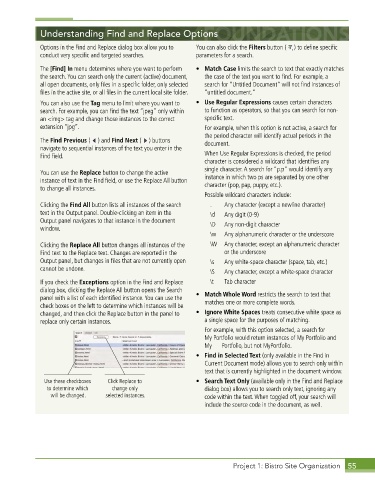
             If you check the Exceptions option in the Find and Replace   \t   Tab character
             dialog box, clicking the Replace All button opens the Search
             panel with a list of each identified instance . You can use the   •  Match Whole Word restricts the search to text that
             check boxes on the left to determine which instances will be   matches one or more complete words .
             changed, and then click the Replace button in the panel to   •  Ignore White Spaces treats consecutive white space as
             replace only certain instances .                  a single space for the purposes of matching .
                                                                For example, with this option selected, a search for
                                                               My Portfolio would return instances of My Portfolio and
                                                               My      Portfolio, but not MyPortfolio .
                                                             •  Find in Selected Text (only available in the Find in
                                                               Current Document mode) allows you to search only within
                                                               text that is currently highlighted in the document window .
               Use these checkboxes   Click Replace to       •  Search Text Only (available only in the Find and Replace
               to determine which   change only                dialog box) allows you to search only text, ignoring any
                 will be changed.  selected instances.         code within the text . When toggled off, your search will
                                                               include the source code in the document, as well .


                                                                        Project 1: Bistro Site Organization  55

