


Page 43 - CC 2019 WD Look Inside
P. 43
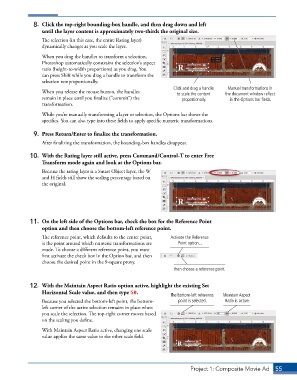
8.  Click the top-right bounding-box handle, and then drag down and left
                 until the layer content is approximately two-thirds the original size.
                 The selection (in this case, the entire Rating layer)
                 dynamically changes as you scale the layer.

                 When you drag the handles to transform a selection,
                 Photoshop automatically constrains the selection’s aspect
                 ratio (height-to-width proportions) as you drag. You
                 can press Shift while you drag a handle to transform the
                 selection nonproportionally.
                                                                    Click and drag a handle   Manual transformations in
                 When you release the mouse button, the handles      to scale the content   the document window reflect
                 remain in place until you finalize (“commit”) the     proportionally.    in the Options bar fields.
                 transformation.

                 While you’re manually transforming a layer or selection, the Options bar shows the
                 specifics. You can also type into these fields to apply specific numeric transformations.

              9.  Press Return/Enter to finalize the transformation.

                 After finalizing the transformation, the bounding-box handles disappear.

             10.  With the Rating layer still active, press Command/Control-T to enter Free
                 Transform mode again and look at the Options bar.
                 Because the rating layer is a Smart Object layer, the W
                 and H fields still show the scaling percentage based on
                 the original.


             11.  On the left side of the Options bar, check the box for the Reference Point
                 option and then choose the bottom-left reference point.
                 The reference point, which defaults to the center point,   Activate the Reference
                 is the point around which numeric transformations are   Point option...
                 made. To choose a different reference point, you must
                 first activate the check box in the Option bar, and then
                 choose the desired point in the 9-square proxy.
                                                                    then choose a reference point.


             12.  With the Maintain Aspect Ratio option active, highlight the existing Set
                 Horizontal Scale value, and then type 50.
                                                                   The bottom-left reference   Maintain Aspect
                 Because you selected the bottom-left point, the bottom-  point is selected.  Ratio is active.
                 left corner of the active selection remains in place when
                 you scale the selection. The top-right corner moves based
                 on the scaling you define.

                 With Maintain Aspect Ratio active, changing one scale
                 value applies the same value to the other scale field.


                                                                          Project 1: Composite Movie Ad    55

