


Page 33 - Web Combo 2022
P. 33
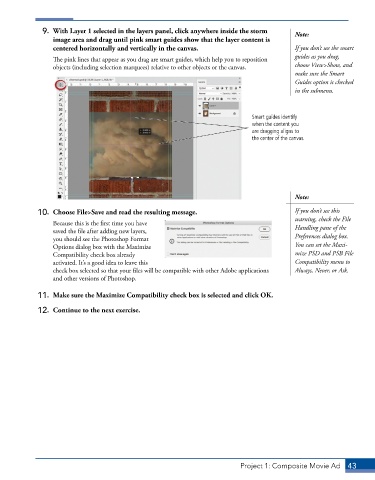
9.  With Layer 1 selected in the layers panel, click anywhere inside the storm   Note:
                 image area and drag until pink smart guides show that the layer content is
                 centered horizontally and vertically in the canvas.                       If you don’t see the smart
                 The pink lines that appear as you drag are smart guides, which help you to reposition   guides as you drag,
                 objects (including selection marquees) relative to other objects or the canvas.  choose View>Show, and
                                                                                           make sure the Smart
                                                                                           Guides option is checked
                                                                                           in the submenu.


                                                                              Smart guides identify
                                                                              when the content you
                                                                              are dragging aligns to
                                                                              the center of the canvas.


                                                                                           Note:

             10.  Choose File>Save and read the resulting message.                         If you don’t see this
                                                                                           warning, check the File
                 Because this is the first time you have
                 saved the file after adding new layers,                                   Handling pane of the
                 you should see the Photoshop Format                                       Preferences dialog box.
                 Options dialog box with the Maximize                                      You can set the Maxi-
                 Compatibility check box already                                           mize PSD and PSB File
                 activated. It’s a good idea to leave this                                 Compatibility menu to
                 check box selected so that your files will be compatible with other Adobe applications   Always, Never, or Ask.
                 and other versions of Photoshop.

             11.  Make sure the Maximize Compatibility check box is selected and click OK.

             12.  Continue to the next exercise.


                                                                          Project 1: Composite Movie Ad    43

