


Page 31 - Adobe Photoshop 2021
P. 31
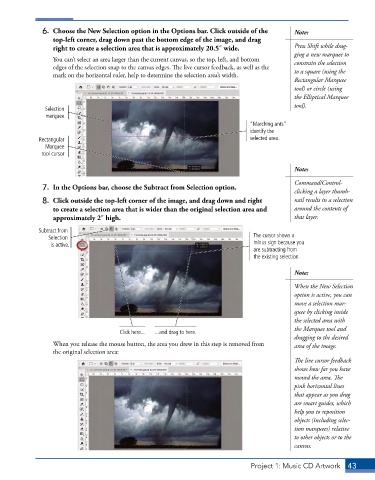
6.  Choose the New Selection option in the Options bar. Click outside of the   Note:
                 top-left corner, drag down past the bottom edge of the image, and drag
                 right to create a selection area that is approximately 20.5″ wide.        Press Shift while drag-
                                                                                           ging a new marquee to
                 You can’t select an area larger than the current canvas, so the top, left, and bottom   constrain the selection
                 edges of the selection snap to the canvas edges. The live cursor feedback, as well as the   to a square (using the
                 mark on the horizontal ruler, help to determine the selection area’s width.
                                                                                           Rectangular Marquee
                                                                                           tool) or circle (using
                                                                                           the Elliptical Marquee
                                                                                           tool).
               Selection
               marquee
                                                                             “Marching ants”
                                                                             identify the
             Rectangular                                                     selected area.
               Marquee
              tool cursor

                                                                                           Note:
                                                                                           Command/Control-
              7.  In the Options bar, choose the Subtract from Selection option.           clicking a layer thumb-
              8.  Click outside the top-left corner of the image, and drag down and right   nail results in a selection
                 to create a selection area that is wider than the original selection area and   around the contents of
                 approximately 2″ high.                                                    that layer.
             Subtract from
                Selection                                                     The cursor shows a
                 is active.                                                   minus sign because you
                                                                              are subtracting from
                                                                              the existing selection.

                                                                                           Note:

                                                                                           When the New Selection
                                                                                           option is active, you can
                                                                                           move a selection mar-
                                                                                           quee by clicking inside
                                                                                           the selected area with
                                                                                           the Marquee tool and
                                      Click here...  ...and drag to here.
                                                                                           dragging to the desired
                 When you release the mouse button, the area you drew in this step is removed from   area of the image.
                 the original selection area:
                                                                                           The live cursor feedback
                                                                                           shows how far you have
                                                                                           moved the area. The
                                                                                           pink horizontal lines
                                                                                           that appear as you drag
                                                                                           are smart guides, which
                                                                                           help you to reposition
                                                                                           objects (including selec-
                                                                                           tion marquees) relative
                                                                                           to other objects or to the
                                                                                           canvas.


                                                                              Project 1: Music CD Artwork  43

