


Page 42 - CC2017_AI_Look_Inside
P. 42
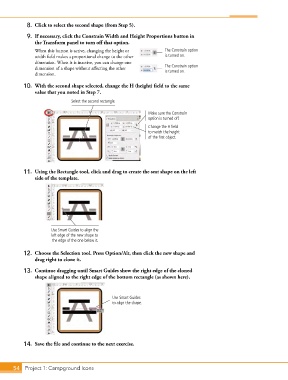
8.  Click to select the second shape (from Step 5).
            9.  If necessary, click the Constrain Width and Height Proportions button in
               the Transform panel to turn off that option.
               When this button is active, changing the height or    The Constrain option
               width field makes a proportional change to the other   is turned on.
               dimension. When it is inactive, you can change one
               dimension of a shape without affecting the other      The Constrain option
                                                                     is turned on.
               dimension.
           10.  With the second shape selected, change the H (height) field to the same
               value that you noted in Step 7.
                              Select the second rectangle.

                                                              Make sure the Constrain
                                                              option is turned off.
                                                              Change the H field
                                                              to match the height
                                                              of the first object.


           11.  Using the Rectangle tool, click and drag to create the seat shape on the left
               side of the template.


                      Use Smart Guides to align the
                      left edge of the new shape to
                       the edge of the one below it.

           12.  Choose the Selection tool. Press Option/Alt, then click the new shape and
               drag right to clone it.

           13.  Continue dragging until Smart Guides show the right edge of the cloned
               shape aligned to the right edge of the bottom rectangle (as shown here).


                                               Use Smart Guides
                                               to align the shape.


           14.  Save the file and continue to the next exercise.


       54 Project 1: Campground Icons

