


Page 22 - Adobe Illustrator 2022
P. 22
Draw Rounded Rectangles                                                       Watch the video
                                                                                              Creating Basic
         Illustrator includes a number of tools that make it easy to create basic shapes —    Shapes in
         rectangles (or squares), ellipses (or circles), and so on.                     Illustrator in your
             Using any of the basic shape tools, you can click and drag with the tool cursor   online student resources.
         to create a shape of any size. Pressing Shift while dragging constrains the shape to
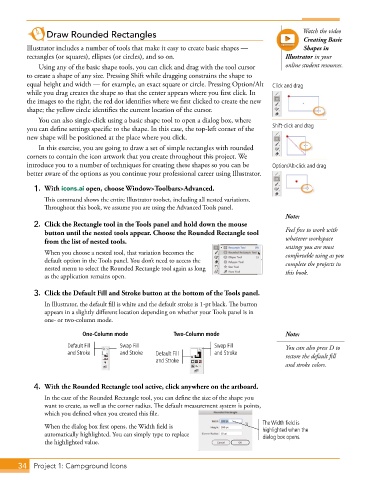
         equal height and width — for example, an exact square or circle. Pressing Option/Alt   Click and drag
         while you drag creates the shape so that the center appears where you first click. In
         the images to the right, the red dot identifies where we first clicked to create the new
         shape; the yellow circle identifies the current location of the cursor.
             You can also single-click using a basic shape tool to open a dialog box, where
         you can define settings specific to the shape. In this case, the top-left corner of the   Shift-click and drag
         new shape will be positioned at the place where you click.
             In this exercise, you are going to draw a set of simple rectangles with rounded
         corners to contain the icon artwork that you create throughout this project. We
         introduce you to a number of techniques for creating these shapes so you can be   Option/Alt-click and drag
         better aware of the options as you continue your professional career using Illustrator.

           1.  With icons.ai open, choose Window>Toolbars>Advanced.
               This command shows the entire Illustrator toolset, including all nested variations.
               Throughout this book, we assume you are using the Advanced Tools panel.
                                                                                        Note:
           2.  Click the Rectangle tool in the Tools panel and hold down the mouse
               button until the nested tools appear. Choose the Rounded Rectangle tool   Feel free to work with
               from the list of nested tools.                                           whatever workspace
                                                                                        settings you are most
               When you choose a nested tool, that variation becomes the                comfortable using as you
               default option in the Tools panel. You don’t need to access the          complete the projects in
               nested menu to select the Rounded Rectangle tool again as long           this book.
               as the application remains open.

           3.  Click the Default Fill and Stroke button at the bottom of the Tools panel.
               In Illustrator, the default fill is white and the default stroke is 1-pt black. The button
               appears in a slightly different location depending on whether your Tools panel is in
               one- or two-column mode.

                          One-Column mode             Two-Column mode                   Note:
                      Default Fill    Swap Fill                   Swap Fill             You can also press D to
                      and Stroke      and Stroke  Default Fill    and Stroke            restore the default fill
                                                 and Stroke
                                                                                        and stroke colors.


           4.  With the Rounded Rectangle tool active, click anywhere on the artboard.
               In the case of the Rounded Rectangle tool, you can define the size of the shape you
               want to create, as well as the corner radius. The default measurement system is points,
               which you defined when you created this file.
                                                                                 The Width field is
               When the dialog box first opens, the Width field is               highlighted when the
               automatically highlighted. You can simply type to replace         dialog box opens.
               the highlighted value.


       34  Project 1: Campground Icons

