


Page 44 - CC 2019 DW Look Inside
P. 44
Uploading Files to a Server (continued)

           After you define a remote or testing server for a site, the Files   When you click the Preview button in the Synchronize with
           panel includes a number of additional options .  Remote Server dialog box, Dreamweaver shows a list of all
                                                          files that will be affected by the process .
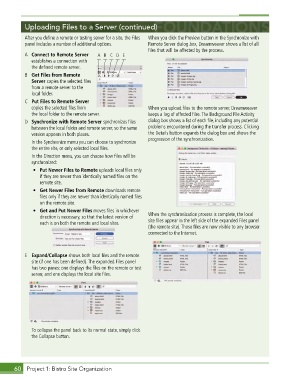
           A  Connect to Remote Server   A B C D E
             establishes a connection with
             the defined remote server .
           B  Get Files from Remote
             Server copies the selected files
             from a remote server to the
             local folder .
           C  Put Files to Remote Server
             copies the selected files from               When you upload files to the remote server, Dreamweaver
             the local folder to the remote server .      keeps a log of affected files . The Background File Activity
           D  Synchronize with Remote Server synchronizes files   dialog box shows a list of each file, including any potential
             between the local folder and remote server, so the same   problems encountered during the transfer process . Clicking
             version appears in both places .             the Details button expands the dialog box and shows the
              In the Synchronize menu you can choose to synchronize   progression of the synchronization .
             the entire site, or only selected local files .
              In the Direction menu, you can choose how files will be
             synchronized:
              •  Put Newer Files to Remote uploads local files only
                if they are newer than identically named files on the
                remote site .
              •  Get Newer Files from Remote downloads remote
                files only if they are newer than identically named files
                on the remote site .
              •  Get and Put Newer Files moves files in whichever
                direction is necessary, so that the latest version of   When the synchronization process is complete, the local
                each is on both the remote and local sites .  site files appear in the left side of the expanded Files panel
                                                          (the remote site) . Those files are now visible to any browser
                                                          connected to the Internet .


           E  Expand/Collapse shows both local files and the remote
             site (if one has been defined) . The expanded Files panel
             has two panes: one displays the files on the remote or test
             server, and one displays the local site files .


              To collapse the panel back to its normal state, simply click
             the Collapse button .


       60  Project 1: Bistro Site Organization

