


Page 38 - CC 2019 DW Look Inside
P. 38
10.  Control/right-click the Search panel tab and choose Close Tab Group.

          11.  Click in the Code pane to make it active.
               Making a specific pane active is called “bringing it into focus.”


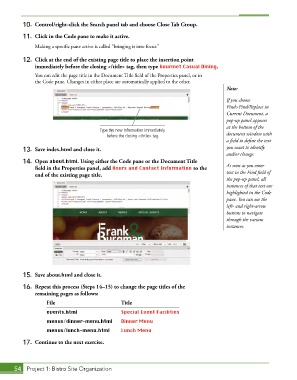
          12.  Click at the end of the existing page title to place the insertion point
              immediately before the closing </title> tag, then type Gourmet Casual Dining.
               You can edit the page title in the Document Title field of the Properties panel, or in
               the Code pane. Changes in either place are automatically applied to the other.
                                                                                        Note:
                                                                                        If you choose
                                                                                        Find>Find/Replace in
                                                                                        Current Document, a
                                                                                        pop-up panel appears
                                                                                        at the bottom of the
                                        Type the new information immediately
                                          before the closing </title> tag.              document window with
                                                                                        a field to define the text
          13.  Save index.html and close it.                                            you want to identify
                                                                                        and/or change.
          14.  Open about.html. Using either the Code pane or the Document Title
              field in the Properties panel, add Hours and Contact Information to the   As soon as you enter
              end of the existing page title.                                           text in the Find field of
                                                                                        the pop-up panel, all
                                                                                        instances of that text are
                                                                                        highlighted in the Code
                                                                                        pane. You can use the
                                                                                        left- and right-arrow
                                                                                        buttons to navigate
                                                                                        through the various
                                                                                        instances.


          15.  Save about.html and close it.

          16.  Repeat this process (Steps 14–15) to change the page titles of the
              remaining pages as follows:
                   File                         Title
                   events.html                  Special Event Facilities
                   menus/dinner-menu.html       Dinner Menu

                   menus/lunch-menu.html        Lunch Menu

          17.  Continue to the next exercise.


       54  Project 1: Bistro Site Organization

