


Page 30 - CC 2019 DW Look Inside
P. 30
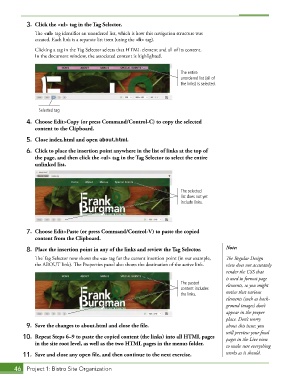
3.  Click the <ul> tag in the Tag Selector.
               The <ul> tag identifies an unordered list, which is how this navigation structure was
               created. Each link is a separate list item (using the <li> tag).
               Clicking a tag in the Tag Selector selects that HTML element and all of its content.
              In the document window, the associated content is highlighted.


                                                                       The entire
                                                                       unordered list (all of
                                                                       the links) is selected.


                Selected tag
           4.  Choose Edit>Copy (or press Command/Control-C) to copy the selected
              content to the Clipboard.

           5.  Close index.html and open about.html.

           6.  Click to place the insertion point anywhere in the list of links at the top of
              the page, and then click the <ul> tag in the Tag Selector to select the entire
              unlinked list.


                                                                       The selected
                                                                       list does not yet
                                                                       include links.


           7.  Choose Edit>Paste (or press Command/Control-V) to paste the copied
              content from the Clipboard.

           8.  Place the insertion point in any of the links and review the Tag Selector.  Note:
               The Tag Selector now shows the <a> tag for the current insertion point (in our example,   The Regular Design
               the ABOUT link). The Properties panel also shows the destination of the active link.  view does not accurately
                                                                                        render the CSS that
                                                                                        is used to format page
                                                                       The pasted       elements, so you might
                                                                       content includes
                                                                       the links.       notice that various
                                                                                        elements (such as back-
                                                                                        ground images) don’t
                                                                                        appear in the proper
                                                                                        place. Don’t worry
           9.  Save the changes to about.html and close the file.                       about this issue; you
                                                                                        will preview your final
          10.  Repeat Steps 6–9 to paste the copied content (the links) into all HTML pages    pages in the Live view
              in the site root level, as well as the two HTML pages in the menus folder.
                                                                                        to make sure everything
          11.  Save and close any open file, and then continue to the next exercise.    works as it should.


       46  Project 1: Bistro Site Organization

