


Page 28 - CC 2019 DW Look Inside
P. 28
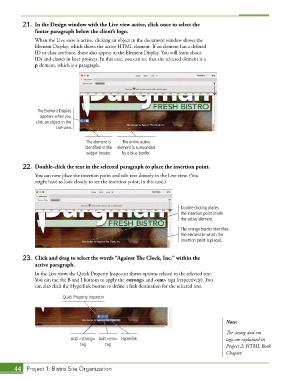
21.  In the Design window with the Live view active, click once to select the
              footer paragraph below the client’s logo.
               When the Live view is active, clicking an object in the document window shows the
               Element Display, which shows the active HTML element. If an element has a defined
               ID or class attribute, those also appear in the Element Display. You will learn about
              IDs and classes in later projects. In this case, you can see that the selected element is a
              p element, which is a paragraph.


               The Element Display
                appears when you
               click an object in the
                       Live view.


                                  The element is   The entire active
                                  identified in the   element is surrounded
                                  widget header.  by a blue border.

          22.  Double-click the text in the selected paragraph to place the insertion point.

               You can now place the insertion point and edit text directly in the Live view. (You
               might have to look closely to see the insertion point, in this case.)


                                                                       Double-clicking places
                                                                       the insertion point inside
                                                                       the active element.
                                                                       The orange border identifies
                                                                       the element in which the
                                                                       insertion point is placed.


          23.  Click and drag to select the words “Against The Clock, Inc.” within the
              active paragraph.
               In the Live view, the Quick Property Inspector shows options related to the selected text.
               You can use the B and I buttons to apply the <strong> and <em> tags (respectively). You
               can also click the Hyperlink button to define a link destination for the selected text.

                         Quick Property Inspector


                                                                                        Note:
                                                                                        The strong and em
                            Add <strong>  Add <em>  Hyperlink                           tags are explained in
                                tag       tag                                           Project 2: HTML Book
                                                                                        Chapter.


       44  Project 1: Bistro Site Organization

