


Page 23 - CC2018_DW_Look_Inside
P. 23
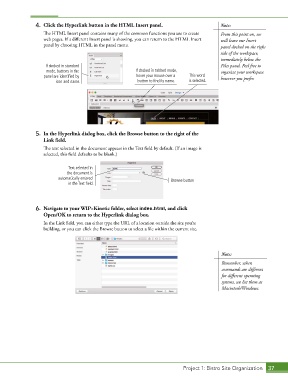
4.  Click the Hyperlink button in the HTML Insert panel.                    Note:
                   The HTML Insert panel contains many of the common functions you use to create   From this point on, we
                   web pages. If a different Insert panel is showing, you can return to the HTML Insert   will leave our Insert
                   panel by choosing HTML in the panel menu.                                panel docked on the right
                                                                                            side of the workspace,
                                                                                            immediately below the
                    If docked in standard                                                   Files panel. Feel free to
                    mode, buttons in the                 If docked in tabbed mode,          organize your workspace
                   panel are identified by               hover your mouse over a   This word   however you prefer.
                        icon and name.                    button to find its name.  is selected.


                5.  In the Hyperlink dialog box, click the Browse button to the right of the
                   Link field.
                   The text selected in the document appears in the Text field by default. (If an image is
                   selected, this field defaults to be blank.)

                             Text selected in
                             the document is
                         automatically entered                          Browse button
                             in the Text field.


                6.  Navigate to your WIP>Kinetic folder, select index.html, and click
                   Open/OK to return to the Hyperlink dialog box.

                   In the Link field, you can either type the URL of a location outside the site you’re
                   building, or you can click the Browse button to select a file within the current site.


                                                                                            Note:
                                                                                            Remember, when
                                                                                            commands are different
                                                                                            for different operating
                                                                                            systems, we list them as
                                                                                            Macintosh/Windows.


                                                                             Project 1: Bistro Site Organization  37

